IPTV Player for Google TV Streamer & Chromecast
Google's own streamers, the Google TV Streamer and the older Chromecast with Google TV, are a natural home for an IPTV player: Google TV, a simple remote, and the Play Store. This guide gets TIVRA installed, signed in and connected to your own provider, then covers the two things worth setting up early on these devices: where recordings go, and using your phone as the keyboard.
TIVRA is a player only. It doesn't supply channels; you add your own provider subscription or your own media library.
Install TIVRA
From Google Play: open the Play Store, search for TIVRA and install. It updates on its own after each release clears Google's review, which usually takes days and means Play is often one version behind the website.
From tivratv.com, with Downloader:
- Install Downloader from the Google Play Store.
- Open it and enter 3059562, or the address
tivratv.com/downloads/tivra-latest.apk. - If asked, allow Downloader to install unknown apps: Settings › Apps › Security & restrictions › Unknown sources (on some devices Settings › Device Preferences › Security & restrictions).
- Press Install, then Open.
The two installs are the same app signed with the same key, so you can sideload over a Play install (or the other way round, when Play has caught up) and keep everything. Details are in How to upgrade TIVRA.
First-run setup
- Account. Create one at tivratv.com/signup: a 7-day free trial, no card required.
- Sign in on the TV with a code. TIVRA shows a short code. On your phone, open
tivratv.com/pair, sign in and enter it. - Add your provider. Xtream Codes, an M3U or get.php link, or a Stalker portal with its MAC, under Settings › Providers › Add Provider.
- Check the Status tab. Every provider shows when its playlist and guide last synced, with its own Sync and Guide buttons.
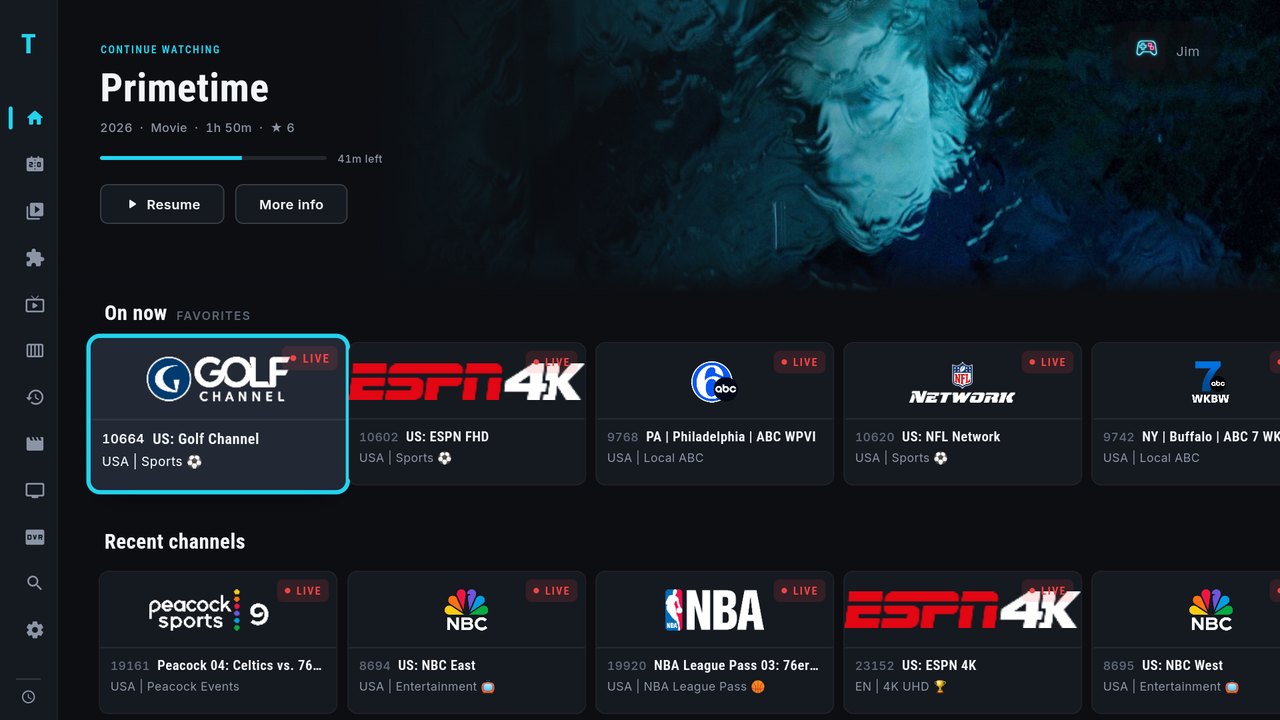
Let your phone do the typing
Typing a server address and password with a D-pad is nobody's idea of fun. Sign in to the web dashboard on your phone instead: add providers there, hide and reorder categories, manage favorites, and every change syncs to the TV. If you are signed in on your phone too, you can send a stream from the phone to the TV; the TV picks it up within about 30 seconds.
On the TV, a few keys cover most of what you'll do: LEFT opens the category list, hold OK on a channel opens Favorite, Record and Multi-View, and hold OK on a Sports Hub game opens its channels and box score, which matters on remotes without a PLAY button. The full list is in remote shortcuts.
Recordings and storage
These devices have little built-in storage, so internal recording fills up quickly. Two better options in Settings › Storage:
- A NAS or SMB share. Enter the server, share, folder and login, press Test connection, then save and choose it for recordings. A wired connection gives the steadiest results; see the NAS setup guide.
- A USB drive, if your device has a port for one (or through an adapter). Use it as portable storage, never "internal": adopting a drive as internal storage moves apps onto it and slows the whole device down.
The live TV pause buffer stays on internal storage either way. Scheduling from the guide is covered in scheduled recordings.
Multi-View runs on the Google TV Streamer too. TIVRA 3.3.0 fixed green borders around the screens and stuttering on that device, and later releases made each tile lighter (720p per tile, no audio decoding on muted tiles). How many screens you can open is set by your provider's connection allowance, not by TIVRA.
Frequently asked questions
Is TIVRA on the Google Play Store for Google TV?
Yes. Search TIVRA in the Play Store on the TV. The Play version arrives after Google's review, so the tivratv.com download through Downloader (code 3059562) is usually newer.
Does it work on the older Chromecast with Google TV?
TIVRA installs on Chromecast with Google TV the same way as on other Google TV devices. Its storage is small, so send recordings to a NAS share rather than internal storage.
Can I add my provider without typing on the remote?
Yes. Sign in to the web dashboard on your phone or computer, add the provider in the Providers panel, and it syncs to the TV automatically.
Does TIVRA include any channels?
No. TIVRA is a media player. You use your own provider subscription or your own Jellyfin, Emby or NAS library.
Try TIVRA on your Google TV
7-day free trial, no card required. Set it up from your phone in minutes with the web dashboard.
Start Free Trial Get it on Google Play