Connect Jellyfin or Emby to TIVRA
TIVRA's Library puts your own movies and TV shows alongside your IPTV content. If you already run a Jellyfin or Emby server, connecting it takes about a minute — TIVRA pulls in your libraries with the server's own artwork and metadata, and reports playback back to the server so Continue Watching stays in sync in both directions.
Both Jellyfin and Emby are first-class sources. The setup steps are identical for either one.
Before you start
- A running Jellyfin or Emby server reachable from your TV — e.g.
http://192.168.1.50:8096on your home network. - A username + password for an account on that server.
No media server? You don't need one. TIVRA can also read movies and shows straight off a NAS share over SMB, with automatic posters and descriptions — see the NAS library guide.
Add the server from your TV
- Open Settings › Providers.
- Pick Add Provider, then choose Jellyfin or Emby.
- Fill in:
- Server URL — address and port, e.g.
http://192.168.1.50:8096 - Username + Password — the account you use on that server.
- Server URL — address and port, e.g.
- Save. TIVRA connects, and your movies and shows appear in the app's Library section.
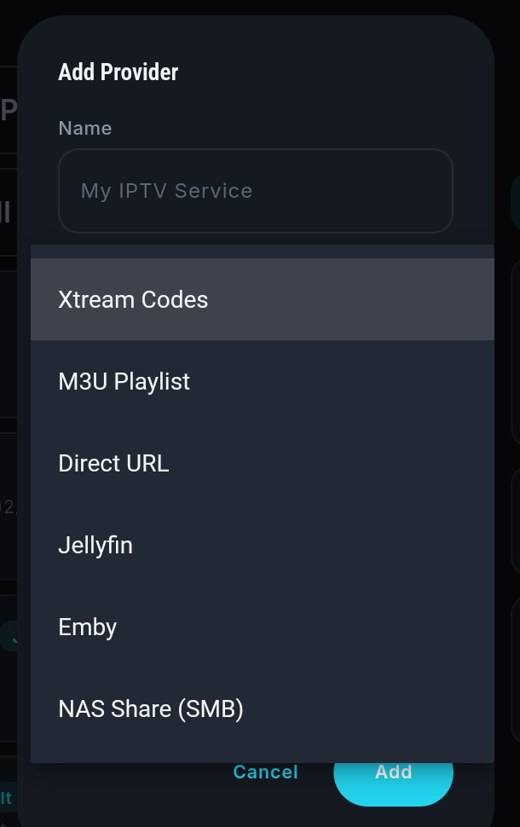
Tip for typing the URL: the on-screen keyboard has a full symbols layer — press the ?# key for characters like : and /.
Or add it from the web dashboard
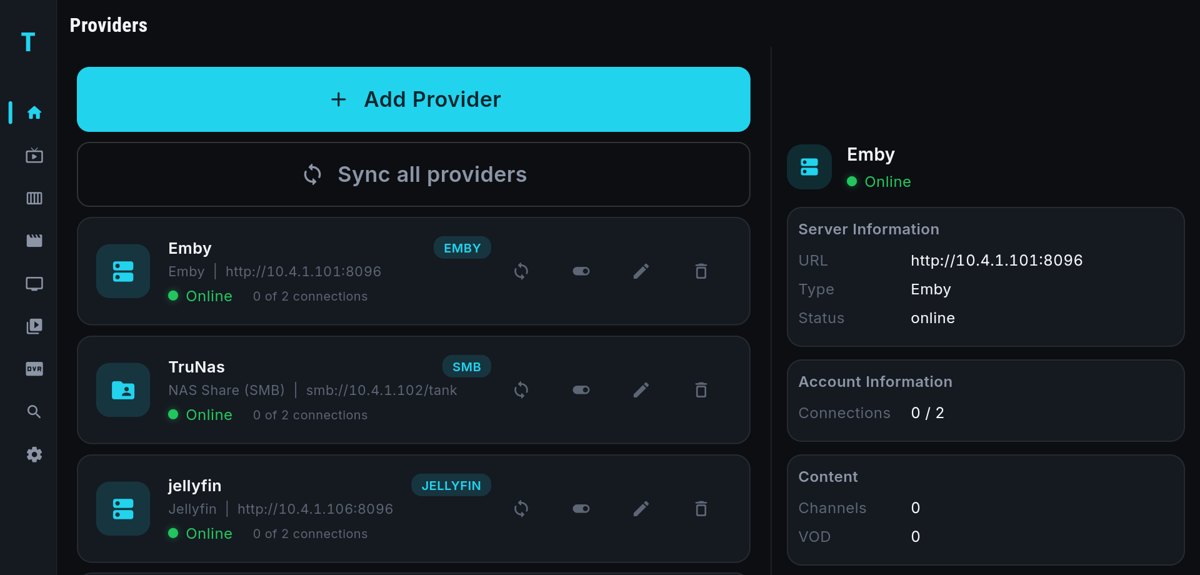
Prefer a real keyboard? Sign in to the web dashboard on your phone or computer, open the Providers panel, and add the Jellyfin or Emby server there with the same fields. Changes sync to your TV automatically — no typing on the remote at all.
What you get
- Your libraries in the app — movies and shows from the server appear in TIVRA's Library section, alongside any NAS sources you've added.
- The server's artwork and metadata — posters, backdrops, descriptions, and cast come straight from Jellyfin/Emby, exactly as you've curated them.
- Continue Watching & Next Up rails — the Library home surfaces what you're mid-way through and the next episode of shows you're watching.
- Detail pages with resume — open a movie or show and pick up where you left off.
- Progress that follows you — watched progress syncs across your devices, and Trakt scrobbling covers library playback too.
Continue Watching syncs both ways
TIVRA reports playback back to your Jellyfin or Emby server. That means:
- Pause a movie in TIVRA, and the resume point shows up in your Jellyfin/Emby apps on other devices.
- Watch half an episode in another Jellyfin/Emby client, and it appears in TIVRA's Continue Watching at the right spot.
Play on TV from the dashboard
The dashboard's Library panel lets you browse your movies and shows in the browser. Click Play on TV on any item to start it playing on your television, or Sync Library to rescan your sources.
Troubleshooting
Can't connect to the server
- Double-check the URL, including the port (Jellyfin and Emby default to
8096for HTTP). - Make sure the server is on and reachable from the TV — they should be on the same network, or the server must be exposed to wherever the TV is.
- If you use HTTPS with a custom port, include it, e.g.
https://media.example.com:8920.
"Authentication failed"
- Username or password typo — re-enter them (the symbols layer on the keyboard helps), or edit the source from the web dashboard with a real keyboard.
- Make sure the account isn't disabled on the server side.
A library is missing
- Check that the account you connected with has access to that library on the server (Jellyfin/Emby restrict libraries per user).
- Use Sync Library (in the app or the dashboard's Library panel) to rescan after adding new media on the server.
Don't have TIVRA yet?
Download the Android TV APK — free 7-day trial, no card required.
Download TIVRA