How to Watch 4 Games at Once on Android TV or Fire TV
You have an IPTV provider, a Sunday full of games, and one TV. This guide gets four games onto that TV at the same time, with sound on the one you choose, and then shows you how to save that arrangement so next week it's one press. It's written for TIVRA on Android TV, Google TV and Fire TV, and the last section covers what to do in other players.
What you need
- A TV box that can decode several streams. An Nvidia Shield, Google TV Streamer, Fire TV Cube or Fire TV 4K Max handles four 1080p streams comfortably. A basic Fire TV Stick manages two to four depending on the streams' bitrate; if a screen stutters, drop the layout to two.
- An IPTV provider with enough connections. Each screen is one stream. A provider that allows two simultaneous connections can fill two screens; four screens needs four connections, or two providers with two each. More on this below.
- TIVRA, installed from Google Play on Android TV or Google TV, or sideloaded on Fire TV with the Downloader app using code
3059562. Add your provider from the web dashboard on your phone with its Xtream Codes login or M3U URL.
The one-press way: Games in progress
- Open the Sports page from the sidebar. Today's games are listed by league with live scores; cards marked On your channels are games TIVRA found on your providers.
- Move to the grid icon at the top right and press OK. A dropdown opens with your saved views first, then Games in progress.
- Choose Games in progress. TIVRA takes up to four live games (or the next games up if nothing is live), finds each on your channels, and opens them side by side. The screen appears immediately and the games fill in as they're found.
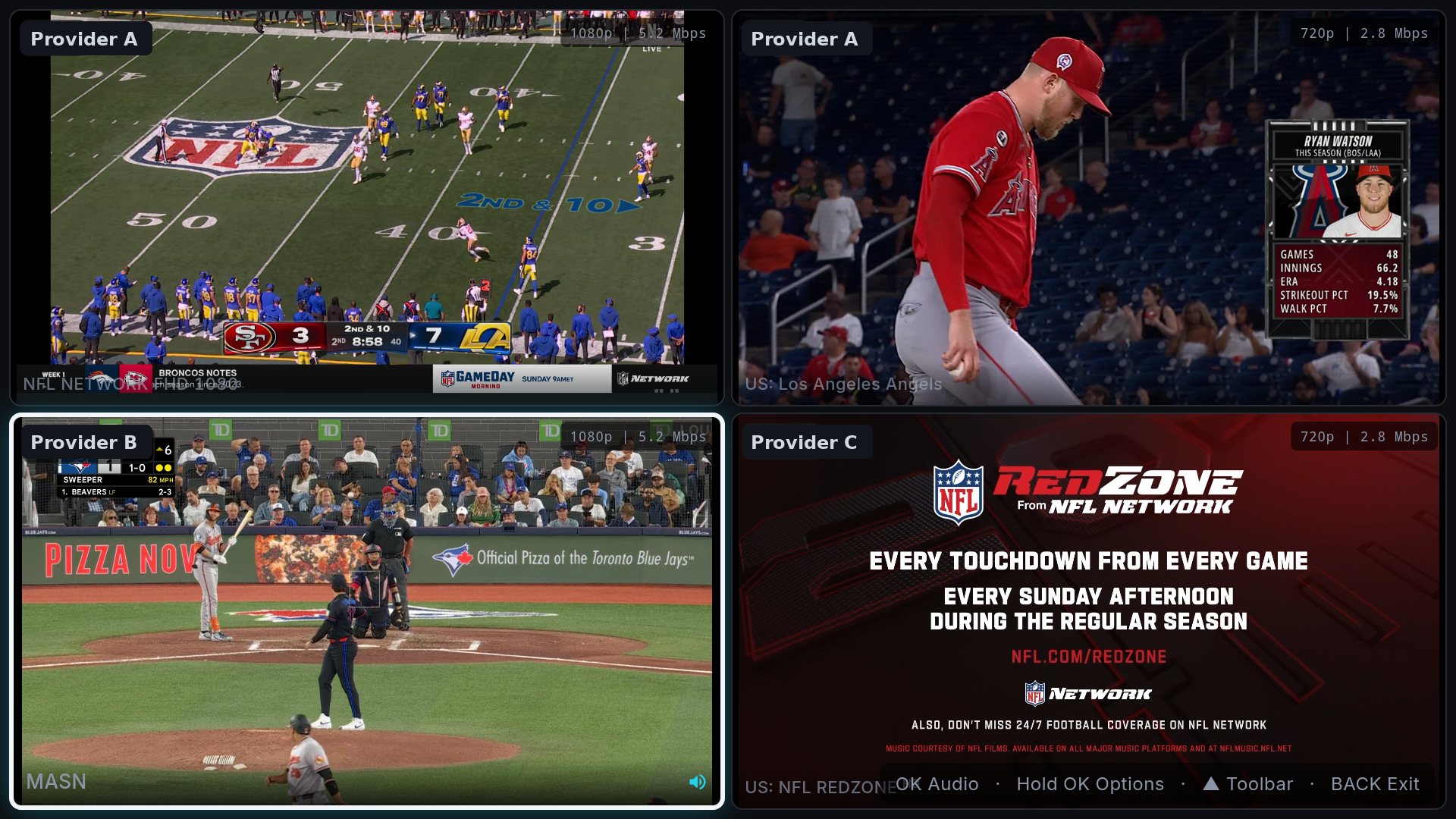
You can also start from any channel: on Live TV, hold OK on a channel and choose Multi-View, then press OK on empty slots to fill them from the channel picker. The Multi-View help page covers that route in detail.
Sound, full screen and swapping a game
- Sound follows the highlight. Move to a screen with the D-pad and press OK to hear it. Everything else stays muted.
- Hear everything: hold OK on a screen and choose Mix audio. Useful for two games; chaotic for four.
- Full screen: hold OK and choose Full screen. Back returns to the grid with everything still playing.
- Swap a game: hold OK, Change channel, and pick another game or any channel. If a feed dies, this is also how you jump to another copy of the same game.
- Change the layout: hold OK, Layout, then 2, 4, 6 or 8 screens. Six and eight are for busy days and strong boxes.
Saving a game-day view
Games in progress picks the games for you. A saved view lets you decide once and reuse it every week.
- Go to Settings › Sports › Sports Multi-View, or choose Manage views in the Multi-View dropdown, and pick Add a view.
- Name it, for example NFL Sunday, and choose 2, 4, 6 or 8 screens.
- For each screen choose a source:
- My teams: "Eagles (or next NFL game)". That team's game today; if they aren't playing, the league's next game, so the screen is never empty.
- Games: "Next NFL game", "Next NBA game", or "Next game (any league)". Live games first, then upcoming.
- Channels: a fixed channel such as NFL RedZone or a news network.
- Save. From now on the view is at the top of the Multi-View dropdown and opens in one press. TIVRA resolves each screen at that moment, so "Next NFL game" means whichever game is on now.
Views can also be built on the web dashboard from a phone, where typing names is easier, and they sync to every TV on your account.
The connection-limit gotcha
The most common Multi-View complaint is "two of my four screens froze". That's almost never the app. Every IPTV provider caps how many streams one account can run at once, usually one to four. Each Multi-View screen is a stream, so a two-connection provider can only fill two screens; the third and fourth either fail or knock the first two off.
TIVRA knows the limit for the provider you're connected to and learns the others the first time it needs them. It fills your default provider up to its cap, then moves to the next provider for the remaining screens, never opening the same channel twice. If you only have one provider with two connections, the honest answer is that a four-screen view will show two games, and the fix is either a plan with more connections or a second provider. Look at the top-left of each screen to see which provider it's using.
Multi-view in other IPTV players
OTT Navigator has a multi-screen mode; you build it by hand from the channel list each time, with no knowledge of which channel has which game. Some builds of IPTV Smarters Pro include a multi-screen option with the same limitation. TiviMate and Televizo have no multi-view. Kodi can do picture-in-picture with add-ons but not a true grid. Our best IPTV apps for sports roundup compares them in full.
Frequently asked questions
How many games can I watch at once?
TIVRA's Multi-View supports 2, 4, 6 or 8 screens. Games in progress opens up to four live games automatically; a saved view can use any layout. The practical limit is your provider's connection cap and your TV box's decoding power.
Can I watch four games at once on a Fire TV Stick?
On a Fire TV 4K Max or Cube, yes. On a basic Fire TV Stick, two screens is reliable and four depends on the streams' bitrate; if screens stutter, use a two-screen layout.
Why do only two of my four screens play?
Your provider allows two simultaneous connections. Each screen is a stream. Add a second provider or a plan with more connections; TIVRA fills each provider to its cap and moves on to the next.
Can I hear more than one game?
Yes. Hold OK on a screen and choose Mix audio. By default sound follows the highlighted screen only.
Does Multi-View work outside of sports?
Yes. From Live TV, hold OK on any channel and choose Multi-View, then fill the other slots from the channel picker: two news networks, a race and a movie, anything you like.
Try Multi-View on your own channels
Free trial, no card required. Add your provider from your phone, open Games in progress, and see four games fill in.
Start Free Trial Get it on Google Play