Sports on Android TV with IPTV: The TIVRA Sports Hub Guide (Scores, Your Channels, Multi-View)
Looking for a sports app for Android TV, Google TV or Fire TV that works with the IPTV provider you already have? That is what the Sports Hub is. It is part of TIVRA, an IPTV player, and it does three things no other IPTV app does: shows live scores and schedules for 42 leagues, finds each game on the channels in your own providers, and opens several games at once in Multi-View. This guide is the full walkthrough. If you are comparing players first, start with the best IPTV apps for sports; for the mechanics of one thing, see watching four games at once and finding which channel a game is on; and for a specific league, the guides for the NFL, NBA, MLB, NHL, Premier League and Champions League.
The Sports Hub is a page in TIVRA that shows every game of the day for the leagues you follow, with live scores, and then does the one thing a scoreboard app cannot: it finds each game on the channels you already have and plays it. This guide walks through the page top to bottom, then the new Sports Multi-View in 3.2.1, where you save a view like NFL RedZone + 3 NFL games and open it in one press.
- Opening the Sports Hub and choosing your leagues
- Previewing and watching a game
- How TIVRA matches games to your channels
- Box scores, player stats and standings
- My Teams
- The CHANNELS tab and your own channels
- Sports Multi-View: games in progress and saved views
- Setting it all up from your phone
- Tips and answers
1. Opening the Sports Hub and choosing your leagues
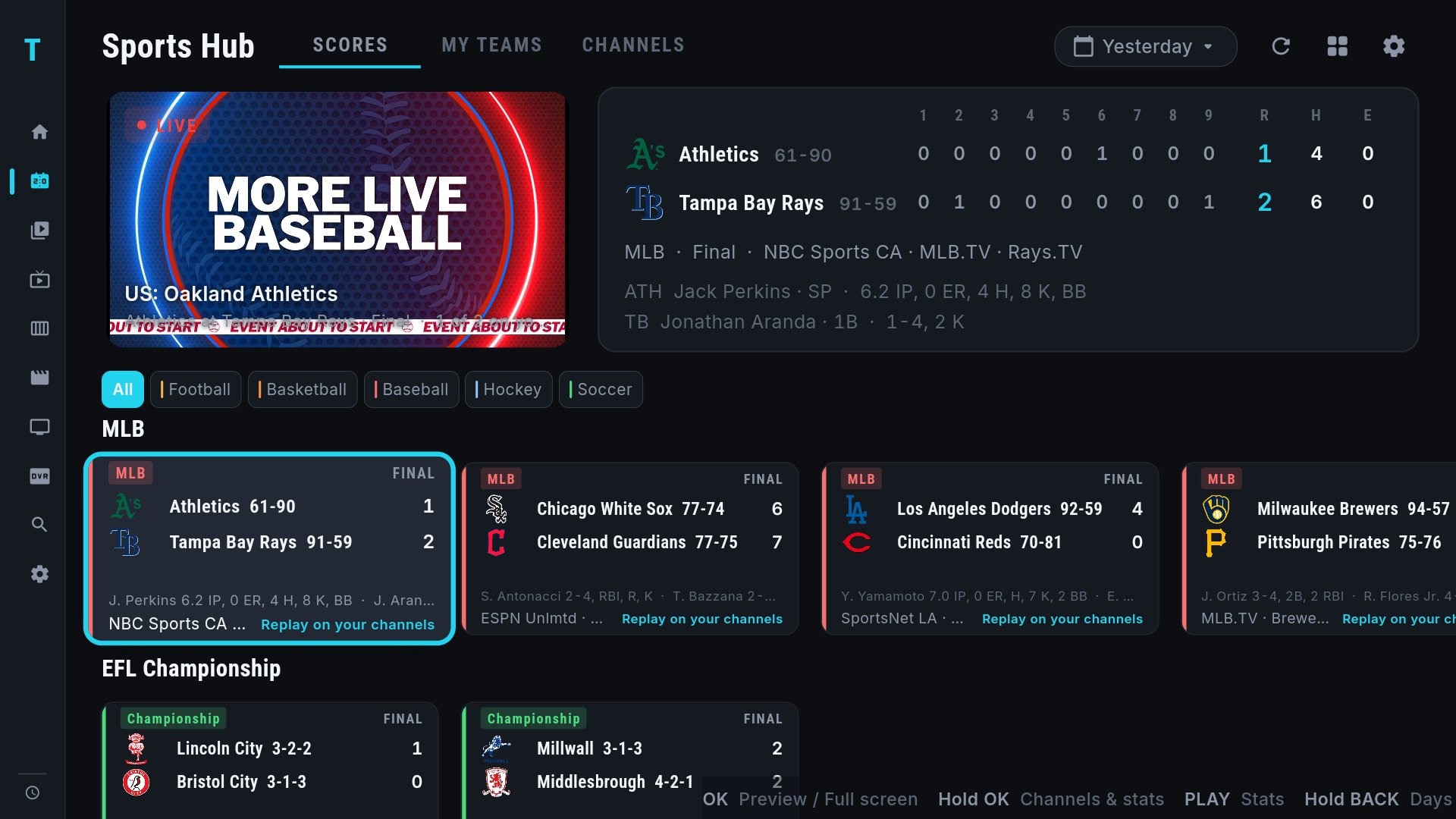
Open the left menu and pick Sports. The page has three tabs across the top: SCORES (today's games, one row per league), MY TEAMS (the teams you follow) and CHANNELS (the sports networks you have). The date picker on the right steps through yesterday, today and the days ahead.
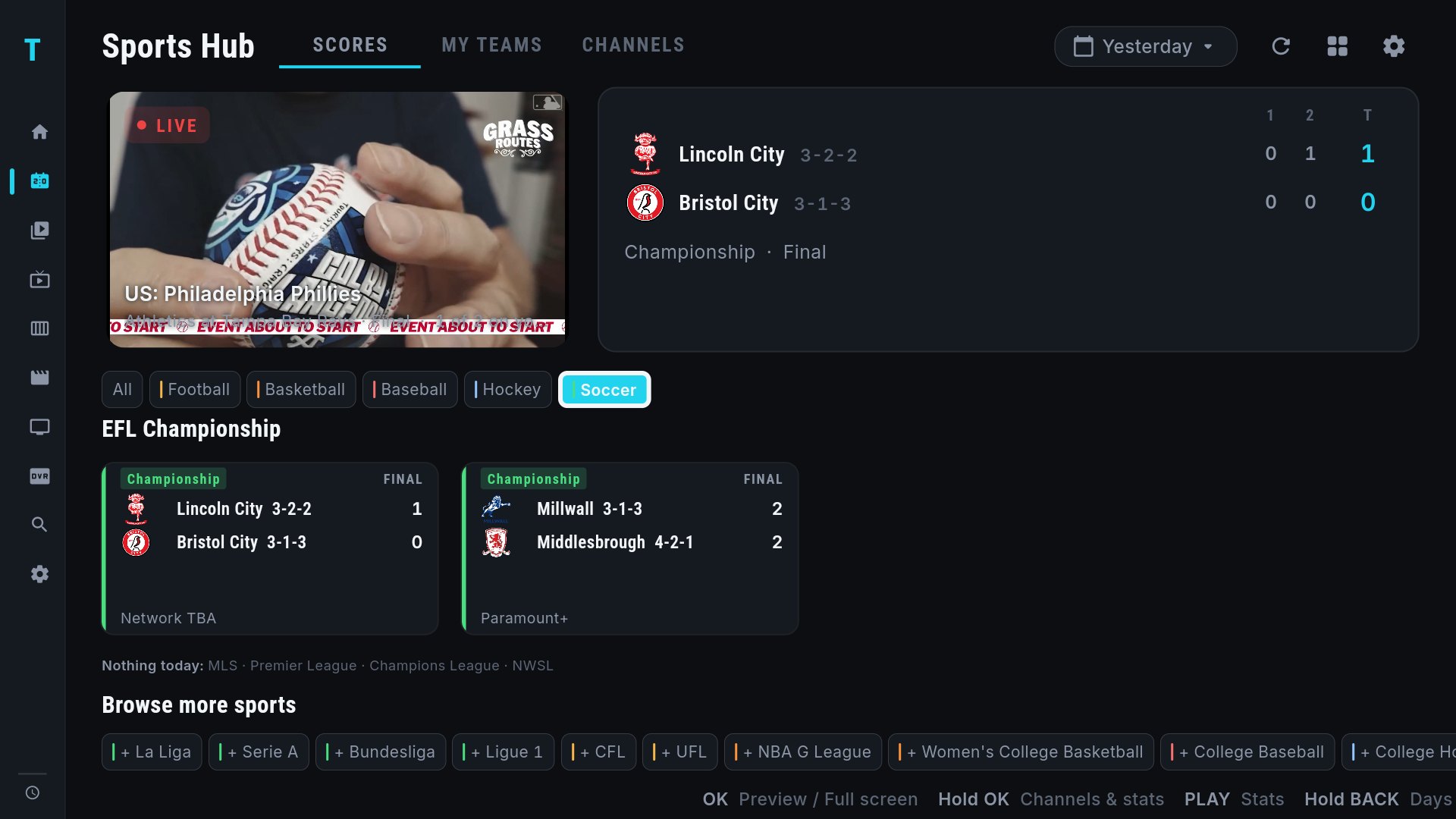
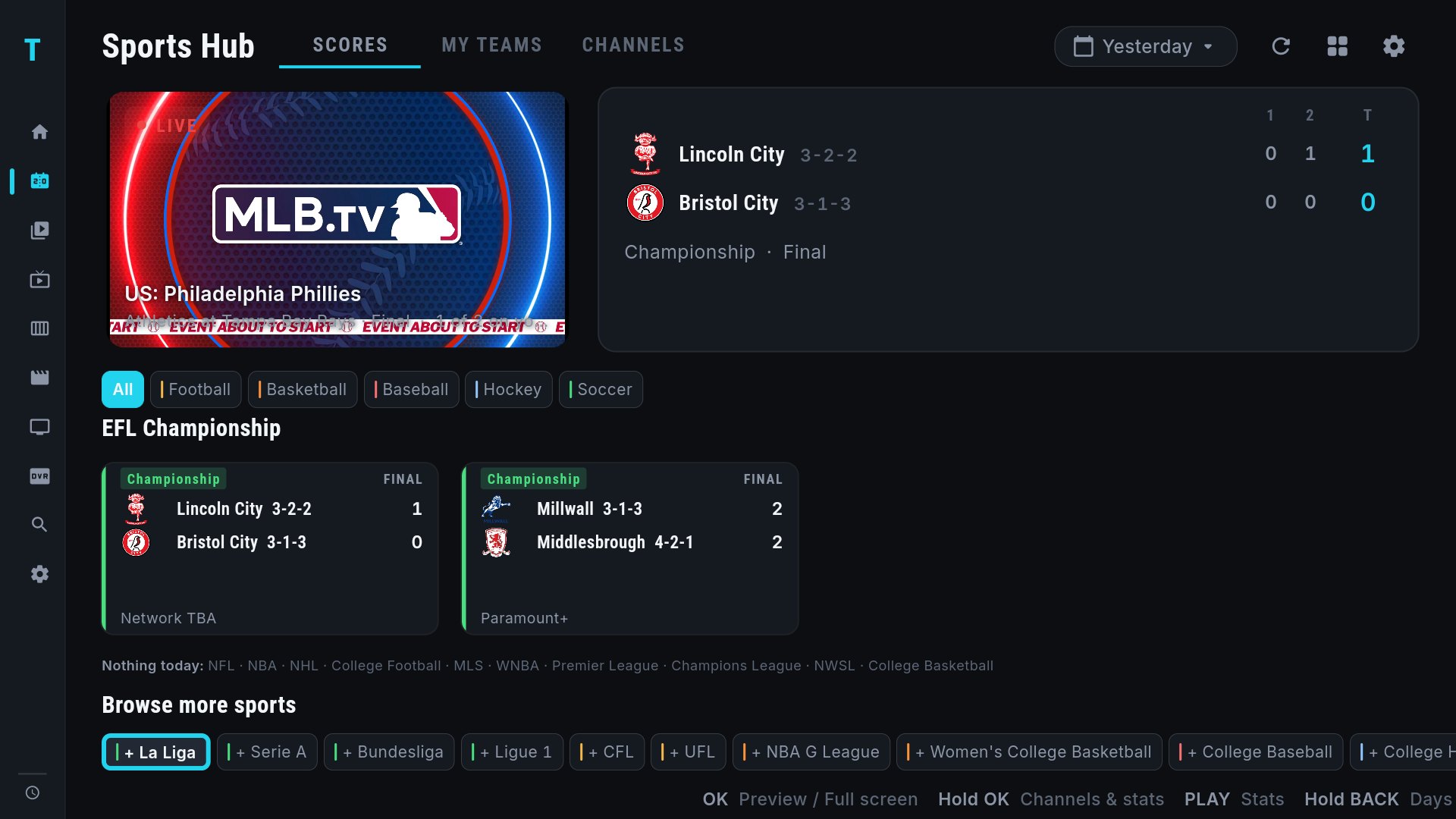
As of 3.3.0 TIVRA covers 42 leagues: NFL, NBA, WNBA, MLB, NHL, MLS, NWSL, college football, basketball, baseball and hockey, the CFL, UFL and NBA G League; the Premier League, Championship, League Cup, FA Cup, Scottish Premiership, WSL, La Liga, Serie A, Bundesliga, Ligue 1, Eredivisie, Primeira Liga, Saudi Pro League, Champions League, Europa League, Conference League, Liga MX, Copa Libertadores and the CONCACAF Champions Cup; IPL, Big Bash and Cricket World Cup cricket; NRL, Premiership Rugby, Six Nations and Super Rugby; and the AFL. Which ones are on to begin with depends on your region — US, Canada, UK, Europe, Australia, India or Mexico — and you can change the region under Settings › Sports. To turn any other league on, scroll to the Browse more sports strip under the rows and press OK on it; to trim the page, use Settings › Sports › Sports rows, where OK toggles a league and every league stays in its sport group.
With that many leagues the page organises itself. A Live now row at the top gathers every game in play across all your leagues. The sport chips above the rows filter to one sport, and each sport has its own colour on the cards so a mixed row reads at a glance. Rows come in the order that matters: leagues with your teams first, then live leagues, then the rest, and leagues with nothing today collapse into one line instead of empty rows. A busy day shows 12 games and a See all tile that opens the full-day grid.
2. Previewing and watching a game
Move to any game card and press OK. The game starts playing in the preview pane at the top left, and the panel next to it switches to that matchup: the score by period, the game leaders, the network it is on and the channel TIVRA picked. Keep browsing while it plays.
- OK again on the same card, or OK on the preview, goes full screen.
- Back from full screen returns to the Sports Hub with the game still playing in the corner.
- Play/Pause on a card opens the full box score (see section 4). No Play button on your remote? Hold OK instead — the sheet that opens leads with Box score & stats.
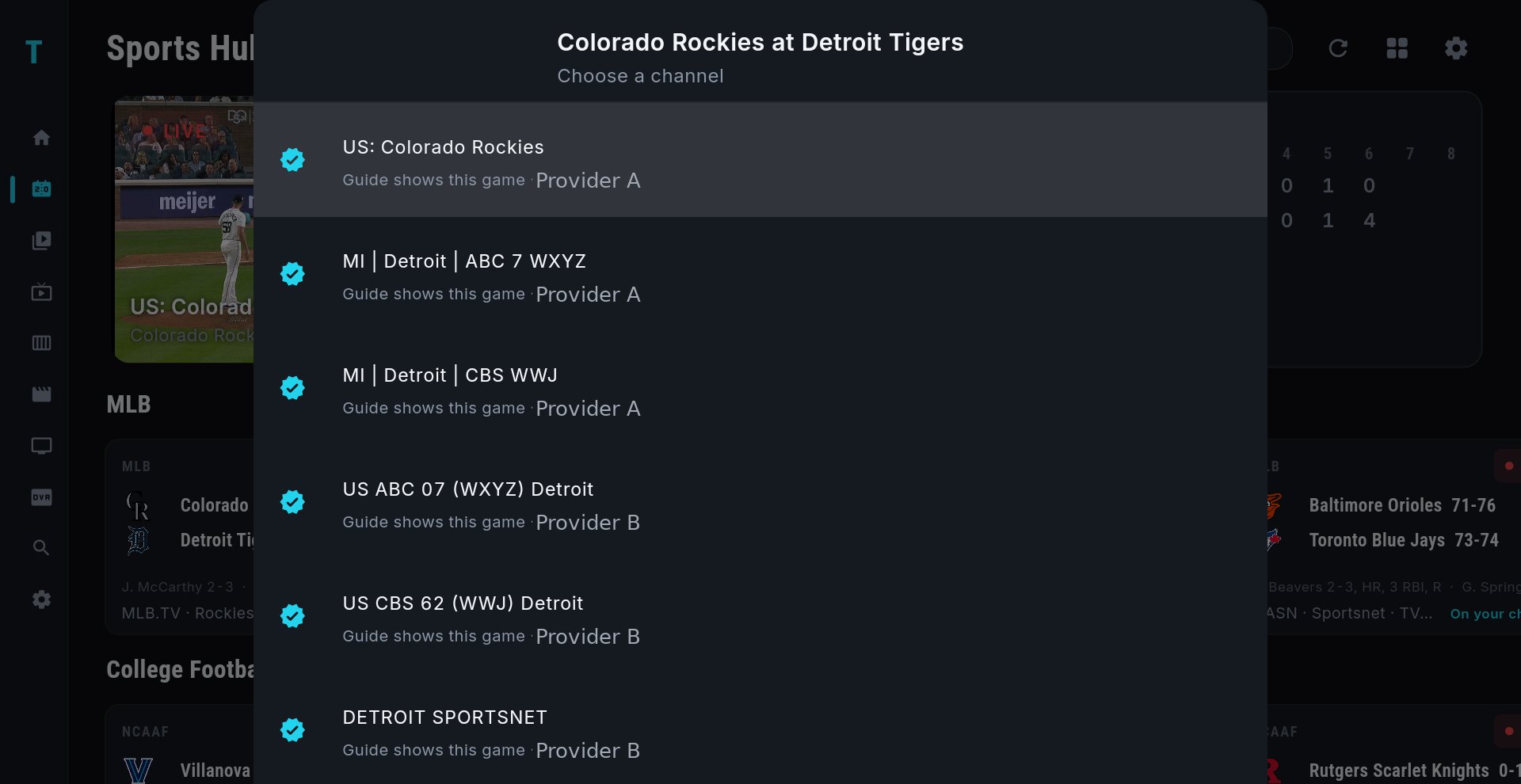
- Hold OK on a card to see every channel carrying that game, across all of your providers, and pick one yourself. TIVRA remembers the pick for that game. The same sheet opens even when a game is not on your channels, so the box score is always one hold away.
Spoiler-safe mode: if you watch games later, turn on Settings › Sports › Hide scores. Scores and clocks stay hidden until you press OK on a game.
3. How TIVRA matches games to your channels
Every game card is checked against all of your providers, not just the one you are connected to. For each game TIVRA looks at three things, in this order:
- Guide data. If a channel's program guide says the game is on now, that channel ranks first.
- Channel names that read like the game. Many providers name event channels after the matchup ("Lions @ Bears") and carry no guide data at all. Those match too.
- The broadcaster. The network listed for the game (ESPN, FOX, NBC, a regional network), found on your providers by name.
Ties are broken in your favour: the provider you are connected to is preferred, HD channels beat SD, and a channel you picked by hand for that game wins every time. Cards say On your channels when a match was found; a card without it means the game is on today but TIVRA could not find it on any of your providers.
4. Box scores, player stats and standings
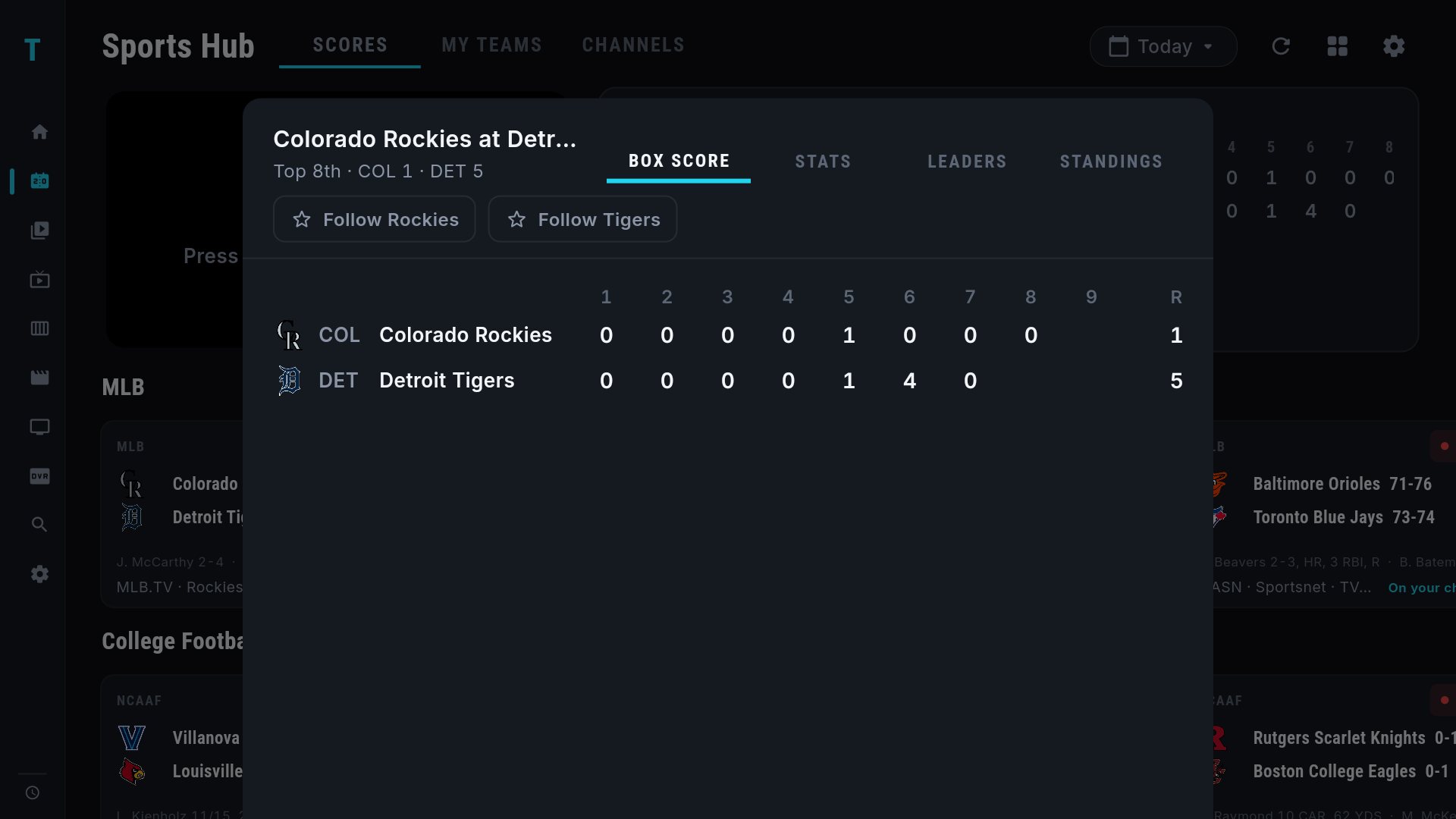
Press Play/Pause on any game, or hold OK and choose Box score & stats, to open the stats sheet. It has the full box score by period or inning, per-team player stats, the game leaders and the division standings. The sheet and the panel beside the preview both refresh while the game is on, so the fourth quarter shows fourth-quarter numbers. The refresh button at the top right of the page reloads everything at once.
5. My Teams
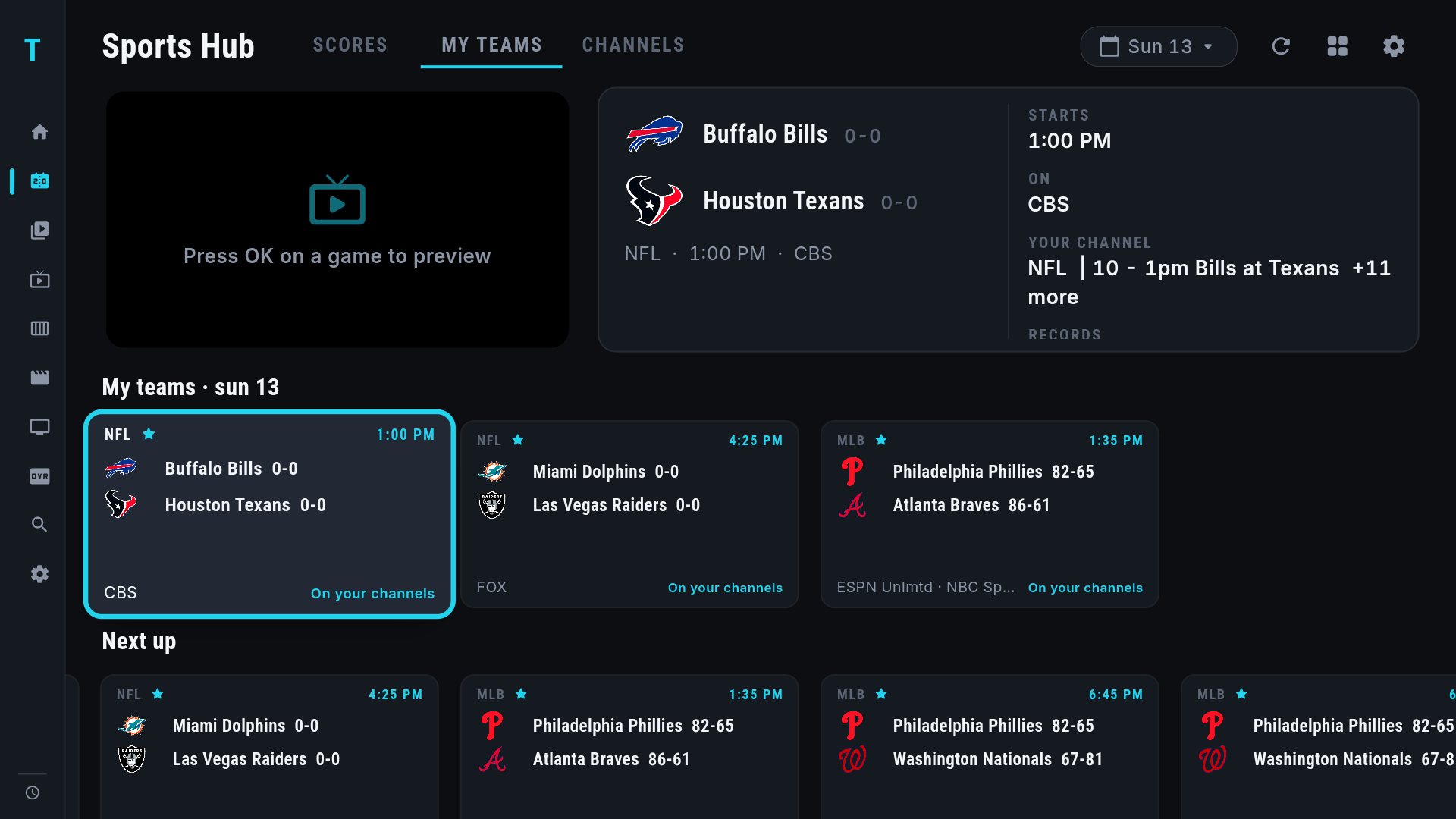
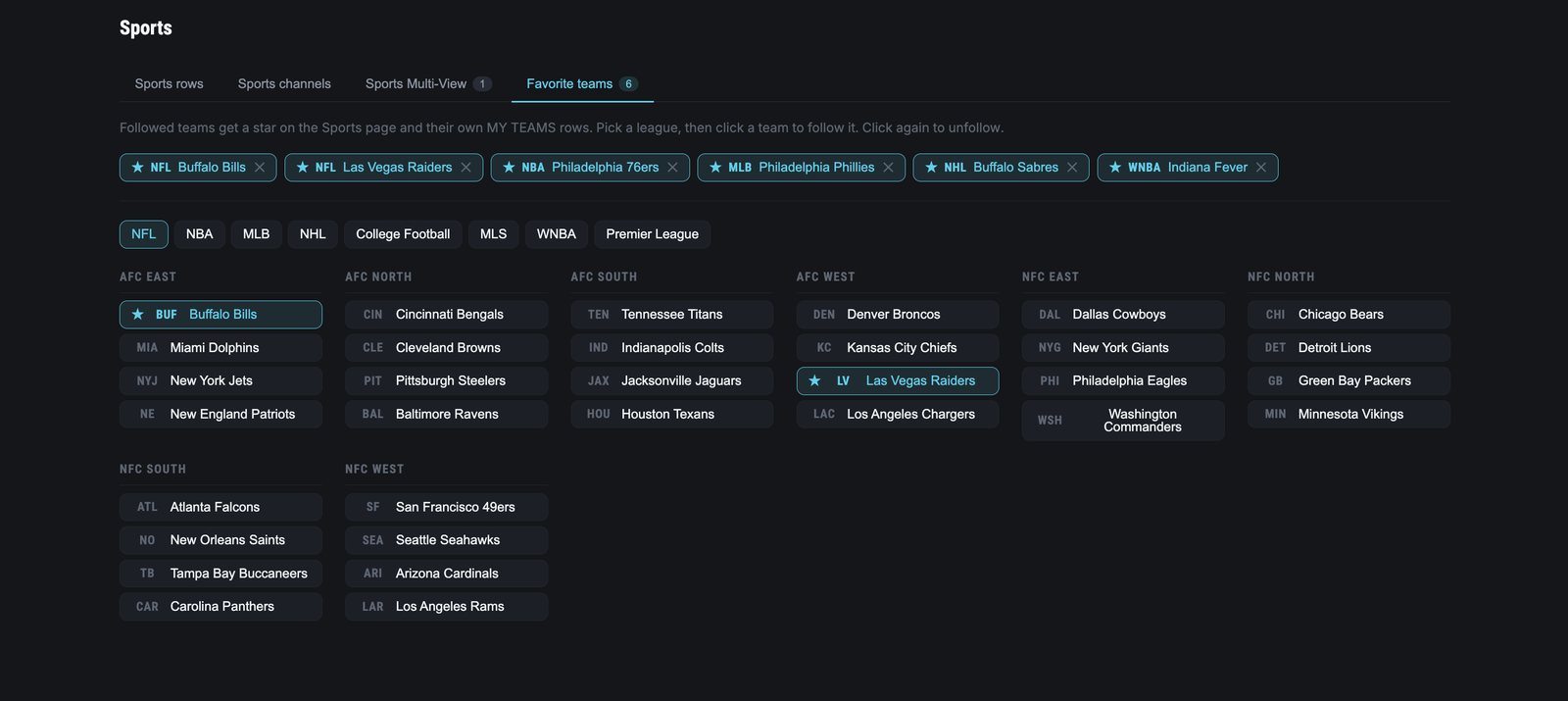
Follow teams in Settings › Sports › Favorite teams. It is one screen with a tab per league; teams are listed by division, and OK follows or unfollows. Followed teams get a star on their cards everywhere, and the MY TEAMS tab shows their games today plus a Next up row for the week ahead. Your followed teams also appear as choices when you build a Sports Multi-View view (section 7).
6. The CHANNELS tab and your own channels
The CHANNELS tab lists the sports networks TIVRA found on your providers, in three rows: League networks (NFL Network, NFL RedZone, NBA TV, MLB Network and so on), Sports networks (ESPN, FS1, TNT, the big ones) and Regional. Each card shows what is on now and next; OK previews it, hold OK shows every copy of that network across your providers.
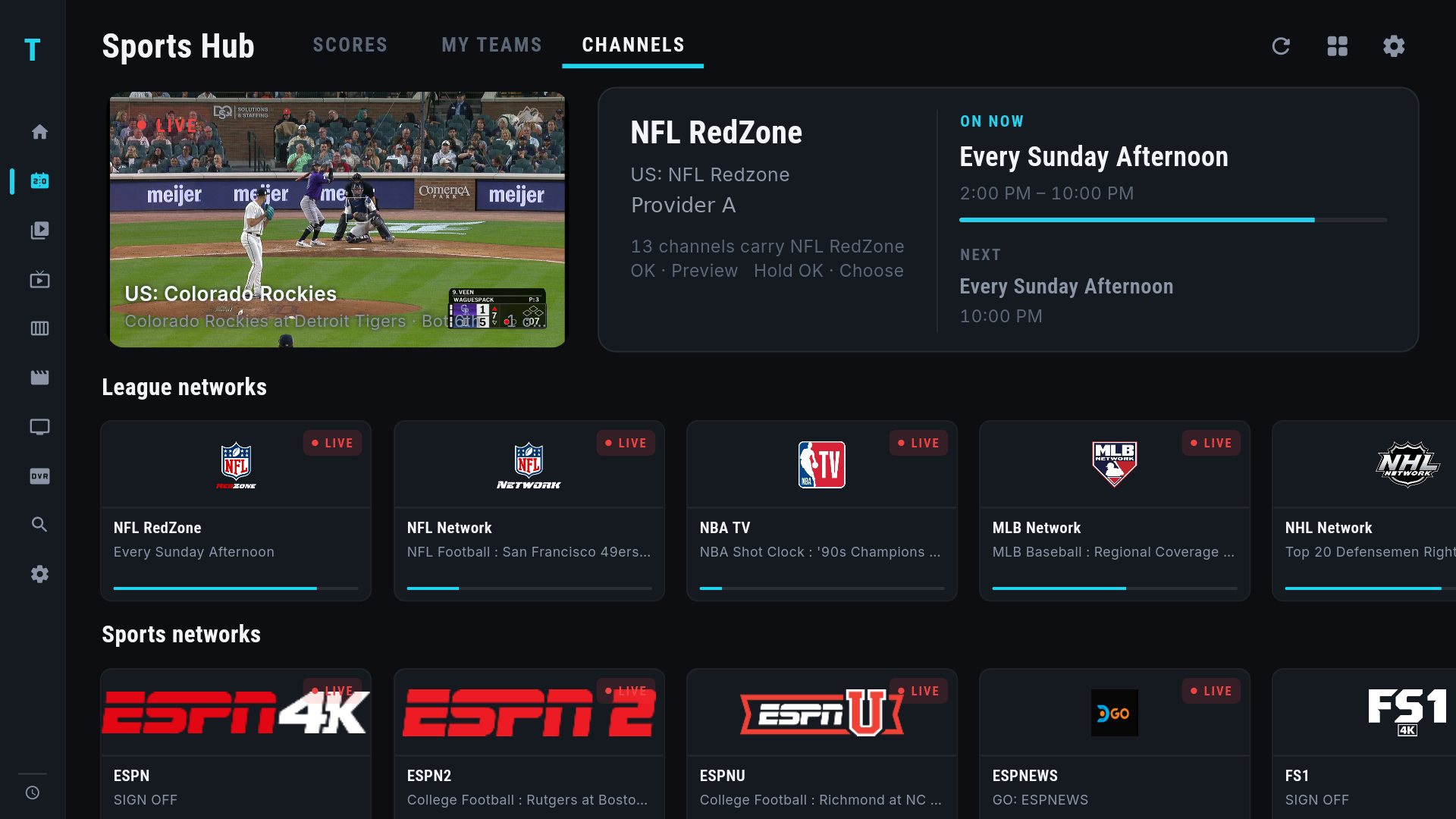
You can add your own channels to any of the three rows. In Settings › Sports › Channels, move to the end of a row's list and pick Add a channel: it searches every provider on your account, and the channel you choose joins that row. The same list lets you hide networks you never watch and reorder the rows. NFL RedZone leads both the NFL row and the League networks row whenever you have it.
7. Sports Multi-View: games in progress and saved views
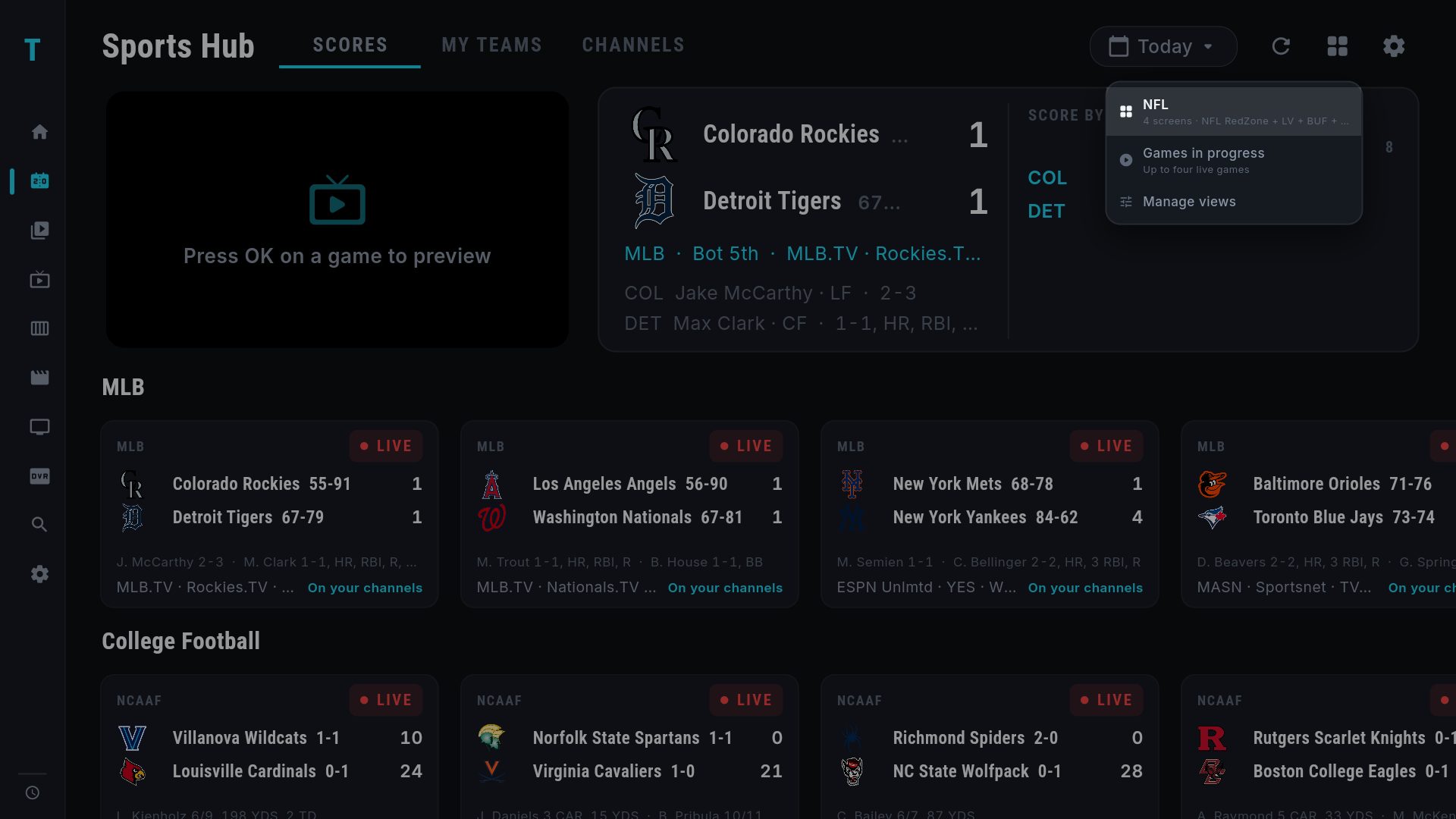
The grid icon at the top right of the Sports page opens Multi-View. Press it and you get a dropdown:
Games in progress
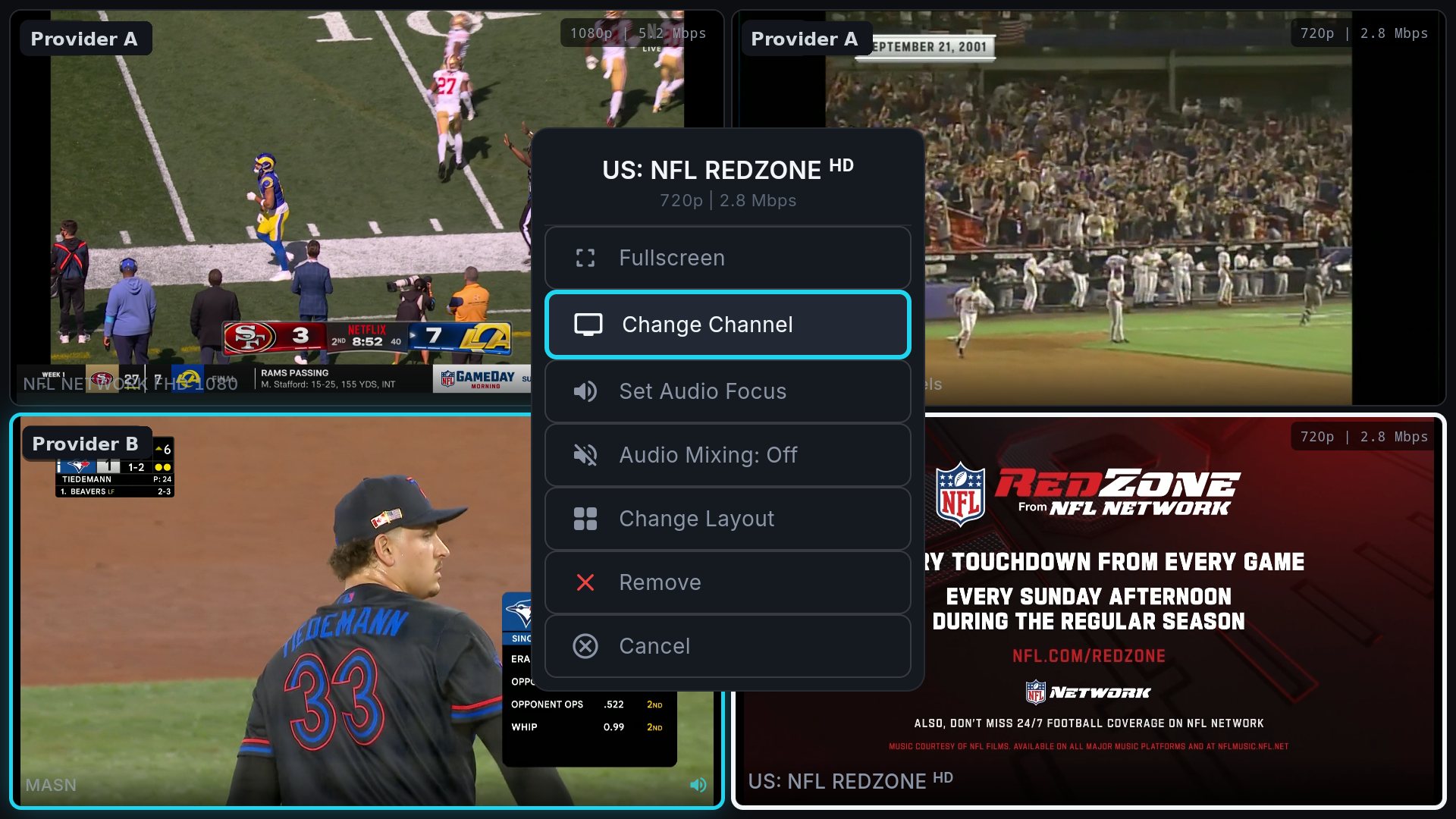
The built-in option. TIVRA takes up to four live games (or the next games up when nothing is live), finds each one on your channels, and opens them side by side. The screen opens at once and the games fill in as they are found. OK on a screen gives its options, including which one you hear; Back brings you back to the Sports Hub.
Saved views
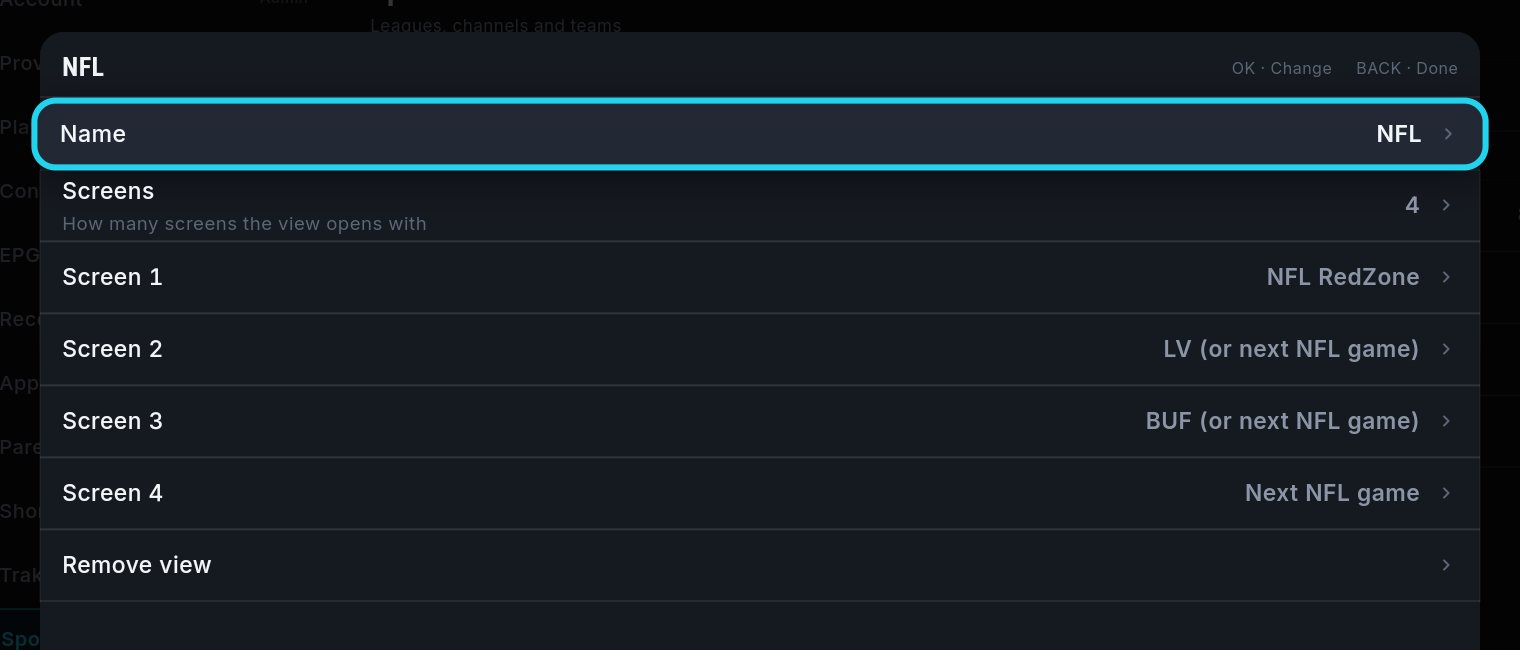
This is the part people asked for. A view is a layout plus what each screen shows. You build it once and open it in one press every game day. Go to Settings › Sports › Sports Multi-View (or Manage views in the dropdown) and pick Add a view. A view has:
- Name, for example "NFL Sunday".
- Screens: 2, 4, 6 or 8.
- One choice per screen, from a list in three sections:
- My teams: "Eagles (or next NFL game)". That team's game today; if they are not playing, the league's next game instead, so the screen is never wasted.
- Games: "Next NFL game", "Next NBA game", or "Next game (any league)". Live games first, then upcoming by start time. Choose "Next NFL game" three times and you get three different games.
- Channels: everything visible on your CHANNELS tab, NFL RedZone included.
A few views people are building:
| View | Screens | What each screen shows |
|---|---|---|
| NFL Sunday | 4 | NFL RedZone · Next NFL game · Next NFL game · Next NFL game |
| My teams | 4 | NFL RedZone · Eagles · Raiders · Bills |
| NBA night | 4 | NBA TV · Next NBA game · Next NBA game · Next NBA game |
| Everything on | 6 | Next game (any league) × 6 |
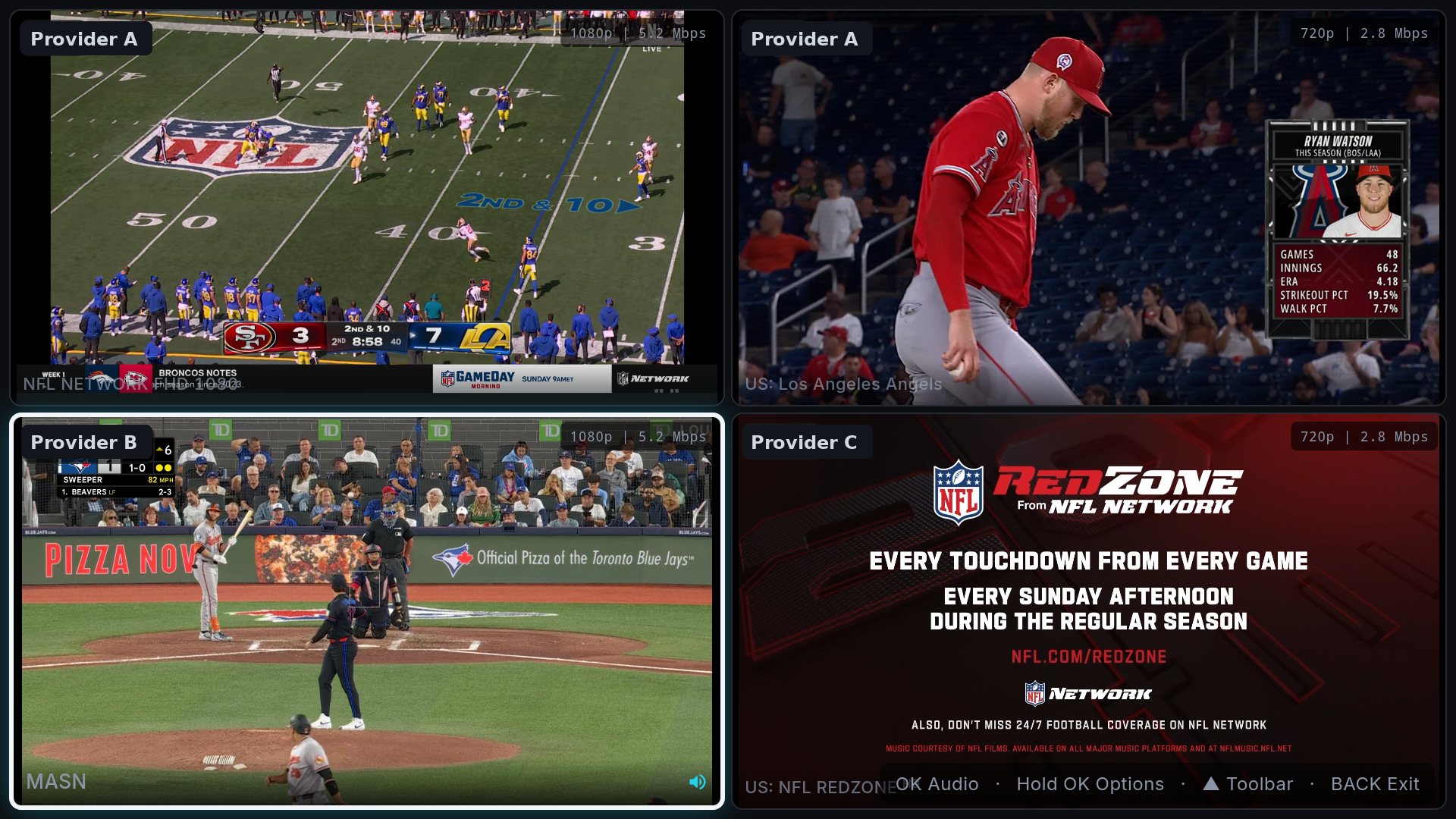
When you open a view, TIVRA resolves each screen in order, then picks the provider for every screen using your connection limits: your default provider's connections first (minus any recording in progress), then the next provider's, then the third. Screens keep the order you set, the provider is shown top-left of each screen once it is playing, and a screen with nothing to show is simply left empty. If fewer than two screens can be filled you get a message instead of a half-empty grid.
Inside Multi-View, Add Channel and Change Channel use a picker built for the Sports Hub: categories first (Games in progress, Upcoming today, NFL RedZone, League networks, Sports networks, Regional), then the rows in that category. Pick one and TIVRA chooses the provider the same way.
8. Setting it all up from your phone
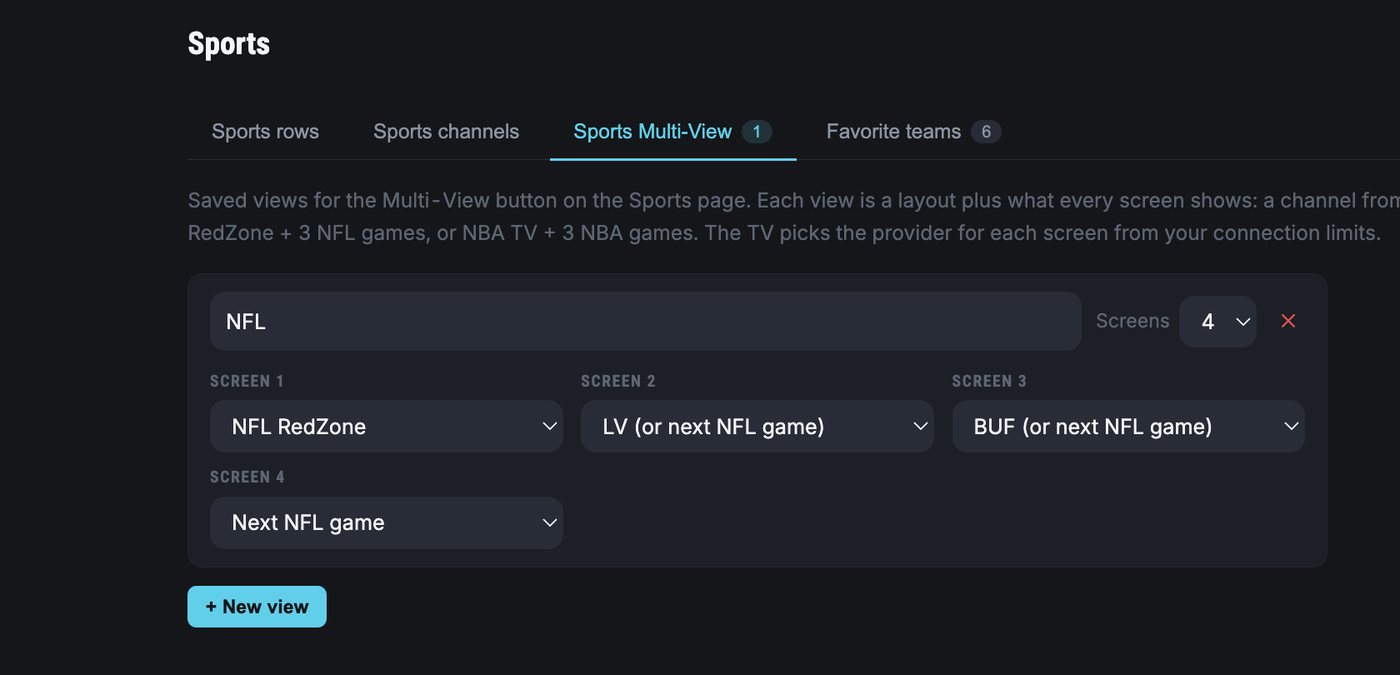
Everything in Settings › Sports is also on the web dashboard, under a new Sports tab: Sports rows, Sports channels, Sports Multi-View and Favorite teams. Building a view on a phone or laptop is quicker than on a remote: name it, pick the number of screens, and choose each screen from a dropdown grouped Games / Channels / My teams. Changes reach your TVs within about 30 seconds, and anything you change on the TV shows up on the dashboard.
9. Tips and answers
A game says it is on but nothing plays
Hold OK on the card and try another channel from the list; the copy TIVRA ranked first may be down on that provider. Your pick is remembered for the rest of the game.
Two of four Multi-View screens freeze
That is a provider connection limit. TIVRA knows the limit for the provider you are connected to and learns the others the first time it needs them, so it fills your default provider up to its cap and moves on to the next. If you only have one provider with two connections, a four-screen view can only fill two screens.
Games from a provider that names channels after the matchup
Those match without any guide data. If a naming pattern is not being picked up, tell us the shape of the name (no provider names needed) and we will add it to the matcher.
Which provider is each screen using?
Look at the top-left of each Multi-View screen. On the Sports Hub, hold OK on a game and the channel list shows the provider next to each entry.
Get TIVRA 3.3.0
42 leagues, Sports Multi-View, every game matched to your own channels, and a web dashboard that sets up your TV. 7-day free trial.
Download for Android TV Get it on Google Play