Sports Hub — The Complete Guide
The Sports Hub puts today's games in one place: live scores, start times, and the channels on your providers that carry each game. This page walks through all of it, from opening the hub to the scores overlay in the full-screen player, starred games, and the live football details on each card. For a longer read with more background, see the Sports Hub guide on our blog.
New in 3.3.8: the scores overlay in the player, starred games, and down & distance on live football cards.
On this page:
- Getting to the Sports Hub
- The top of the page
- The SCORES tab
- Previewing and watching a game
- The game menu (Hold OK)
- Box scores and stats (PLAY)
- Hide scores (no spoilers)
- MY TEAMS
- The CHANNELS tab
- Multi-View from the hub
- Sports settings
- The scores overlay in the player
- Moving around the overlay
- Star the games you care about
- Live football: who has the ball
1. Getting to the Sports Hub
Open the menu on the left (press LEFT from most pages, or BACK on the Sports Hub itself), move to Sports and press OK.
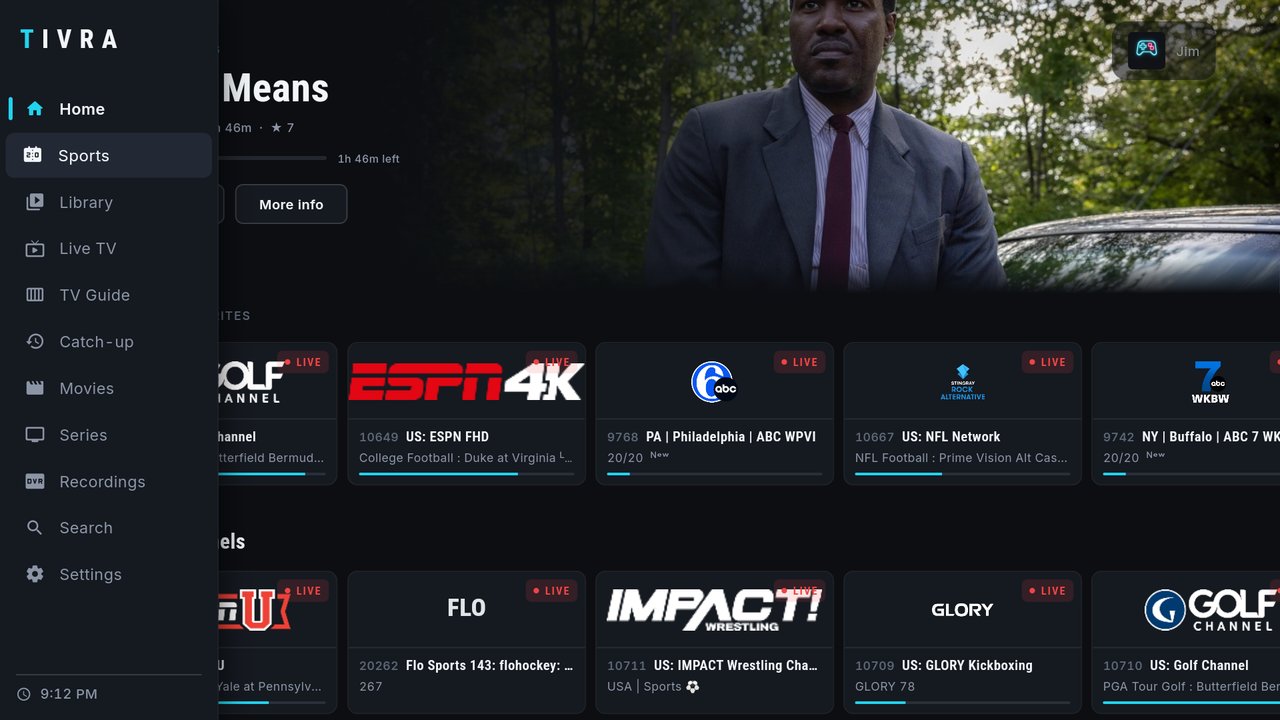
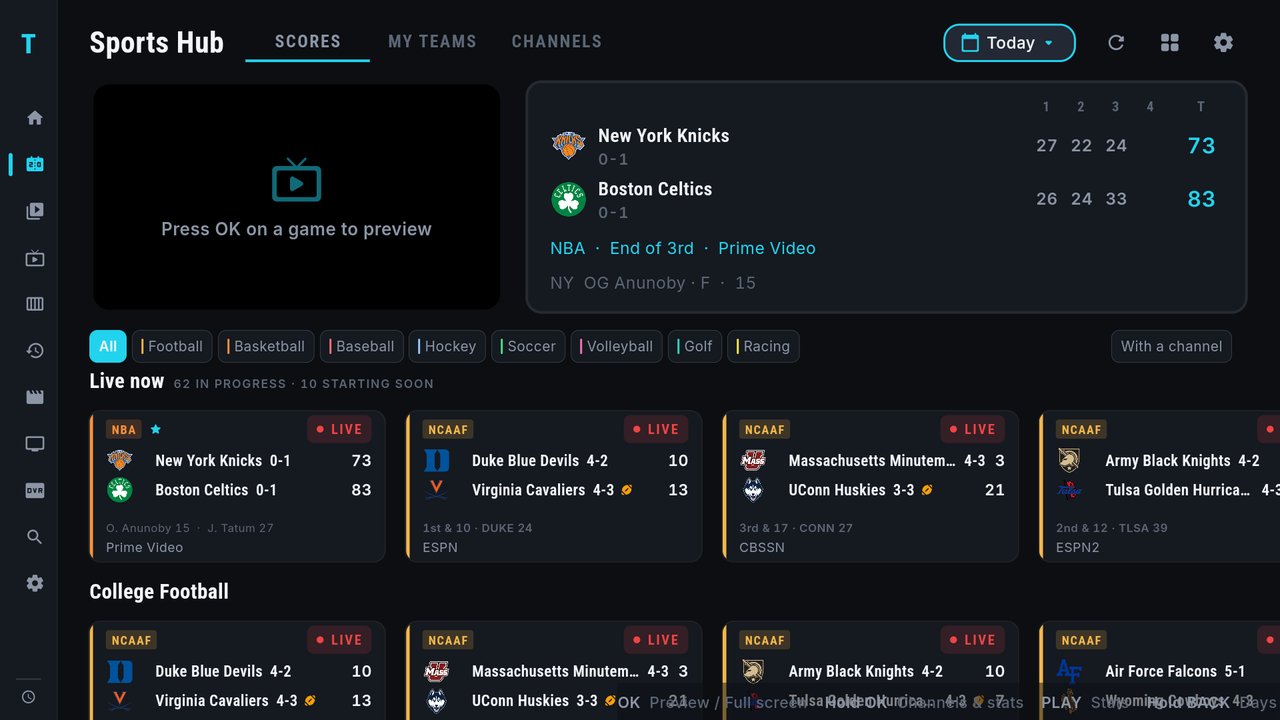
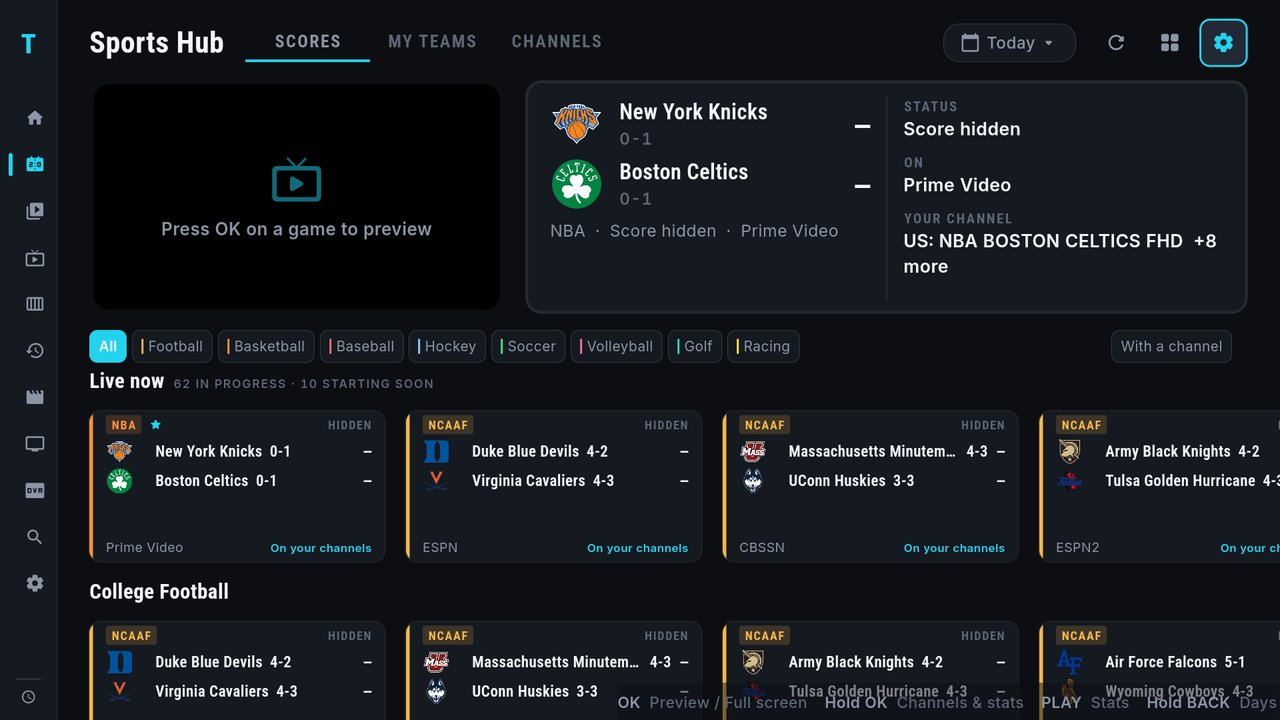
The page has four parts, top to bottom: the tabs and buttons across the top, the preview (top left) and the info panel (top right), the sport chips, and the rows of game cards. A line along the bottom of the screen reminds you of the keys: OK Preview / Full screen · Hold OK Channels & stats · PLAY Stats · Hold BACK Days.
2. The top of the page
- SCORES / MY TEAMS / CHANNELS — the three tabs. Move to one and press OK to switch.
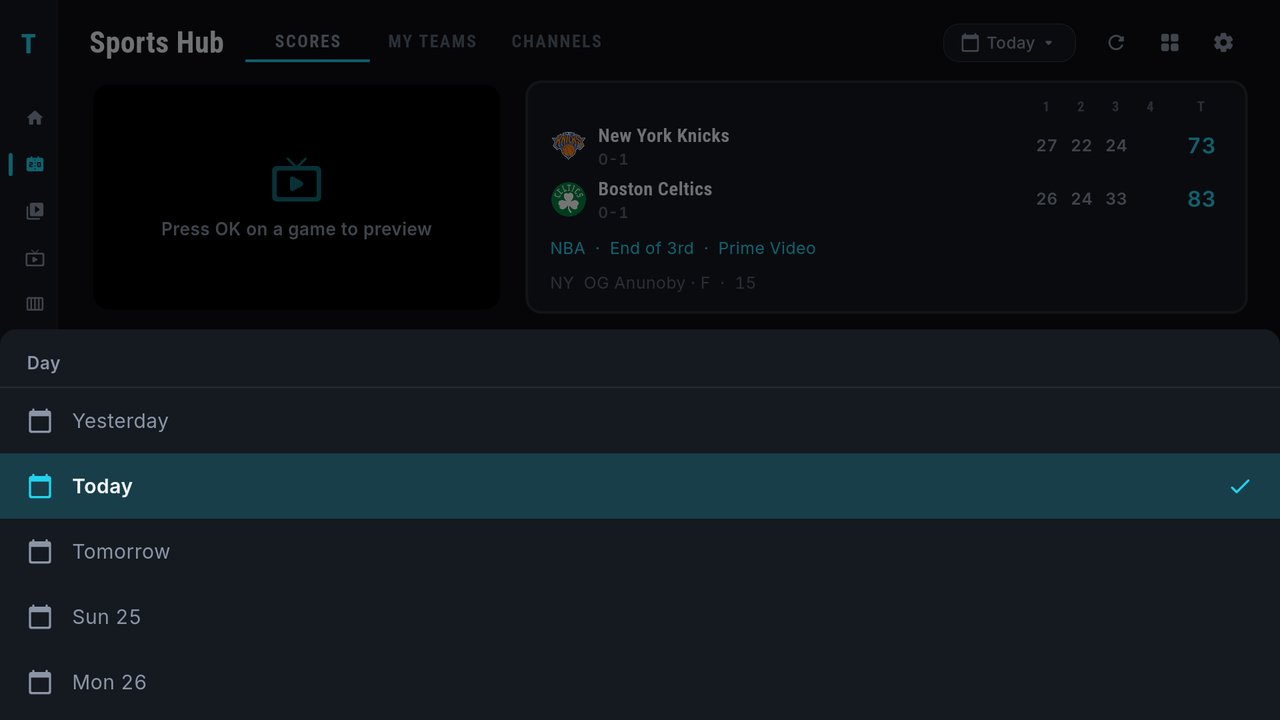
- Today ▾ — the day picker. Press OK for a list: Yesterday, Today, Tomorrow, then the days ahead by name. Hold BACK anywhere on the page jumps straight to it.
- Refresh — the round arrow.
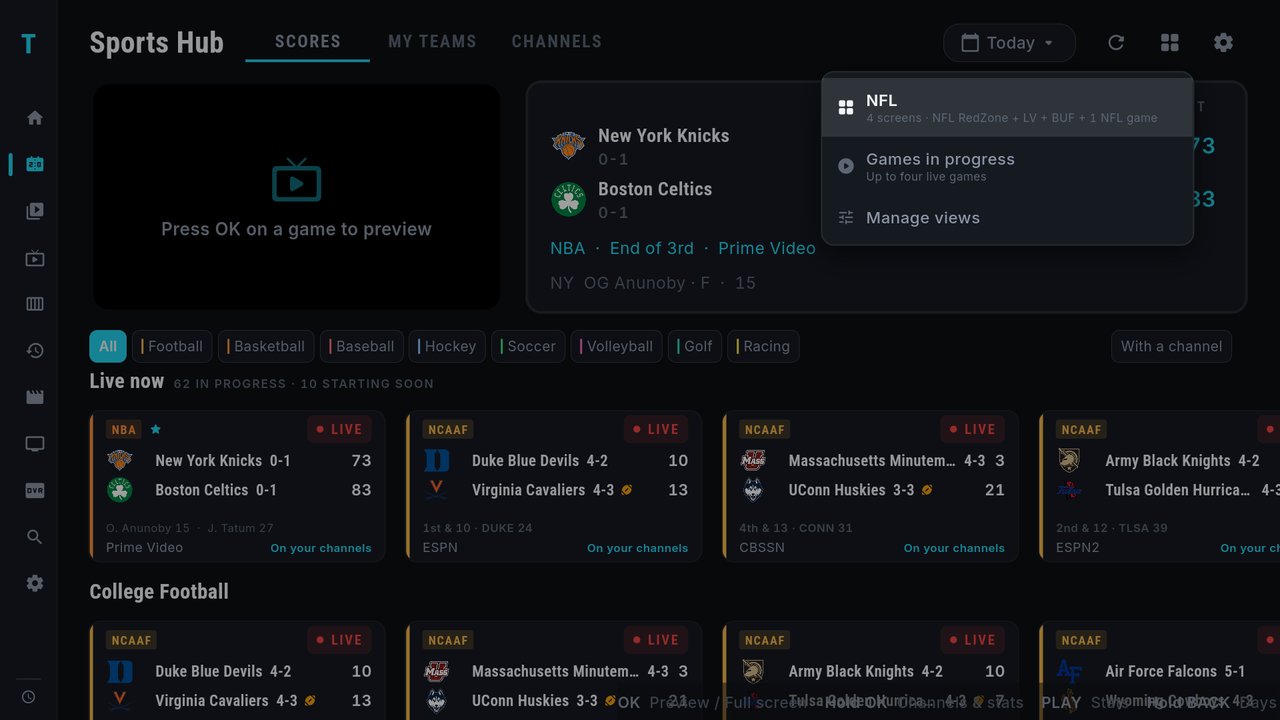
- Multi-View (the four squares) — opens games side by side. See Multi-View from the hub.
- Settings (the gear) — goes straight to Settings › Sports. See Sports settings.
3. The SCORES tab
Live now and the league rows
The first row, Live now, collects every game in progress across your leagues, with a count beside it such as 62 in progress · 10 starting soon. Starred games lead it. Below it comes one row per league (NBA, College Football, College Hockey, and so on). DOWN moves between rows; LEFT / RIGHT move along a row.
Sport chips
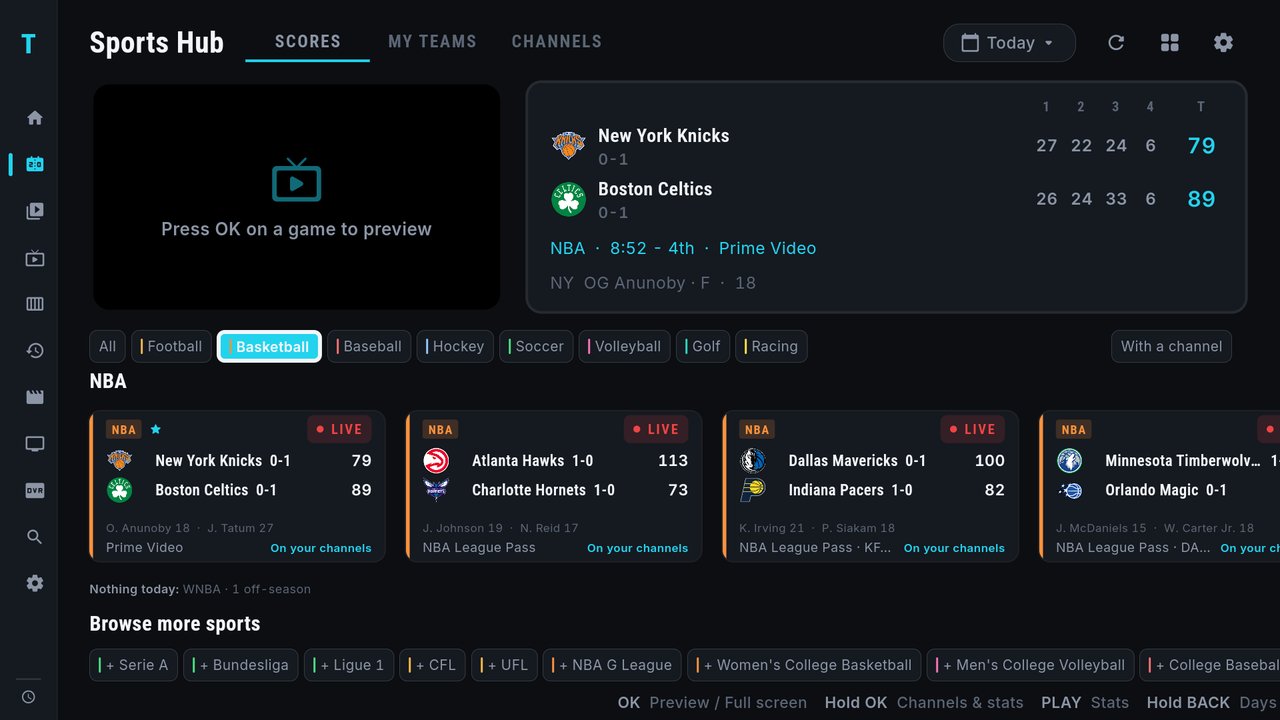
The chips above the rows (All, Football, Basketball, Baseball, Hockey, Soccer and so on) filter the page to one sport. Move to a chip and press OK; press OK on All to see everything again. With one sport chosen, a Nothing today line lists that sport's leagues with no games, and a Browse more sports strip at the bottom lists leagues you haven't turned on yet.
With a channel
The With a channel chip at the right end of the chip row hides games that none of your providers carry. Press OK on it to turn it on, and again to turn it off. What it leaves depends entirely on the channels your providers have.
Reading a game card
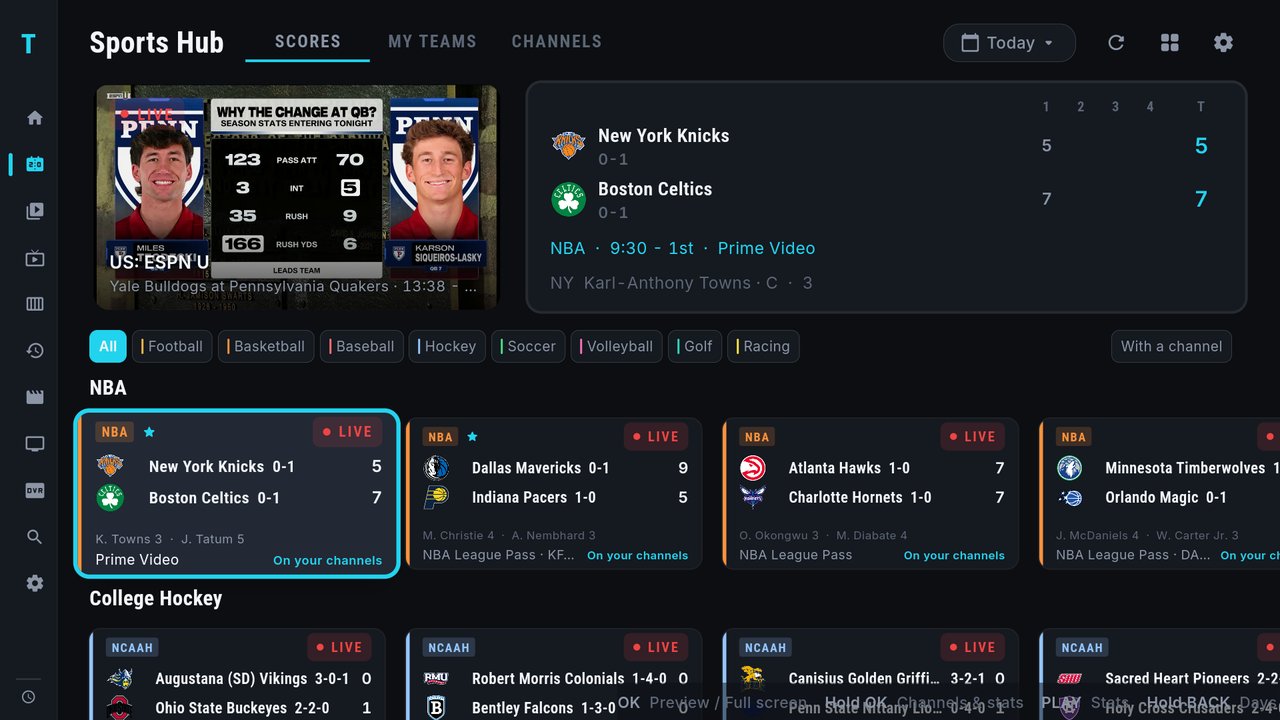
Every card has the league at the top left and the game's state at the top right:
- LIVE in red while the game is on.
- FINAL once it's over.
- A start time (in your TV's time zone) for games that haven't started yet.
A small star next to the league means you starred the game, or it's one of your teams.
What's in the middle depends on the sport:
- Football, basketball, hockey, baseball, soccer, volleyball: both teams with their logos and records, and the score. For many live and finished games a line under the teams names the standout players, such as a quarterback's passing line or each team's top scorer.
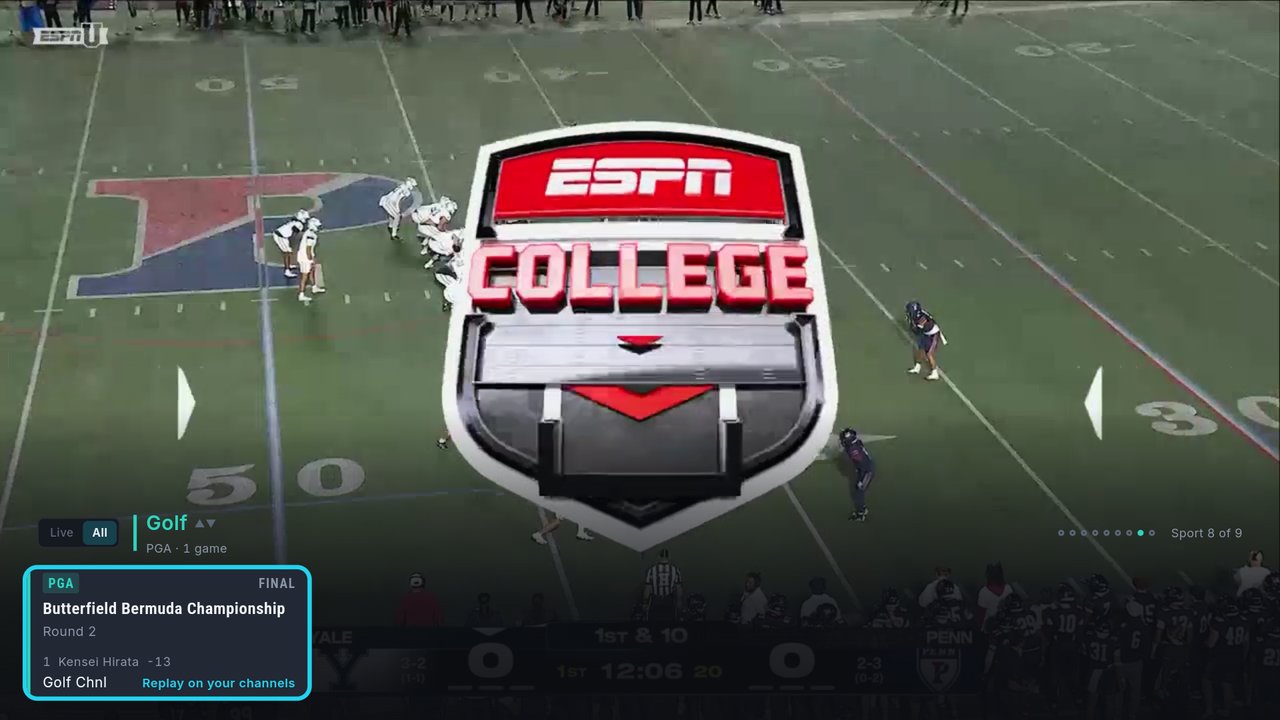
- Golf: the tournament, the round, and the current leader with their score (for example 1 Kensei Hirata −13).
- Racing: the event, the session and the circuit, and who's in front.
Along the bottom of the card is the network the game is on, plus a hint about your own channels:
- On your channels — TIVRA found the game on a channel from one of your providers.
- Replay on your channels — the same hint on a game that has finished.
- Not on your channels — none of your providers seem to carry it.
These hints depend on your providers: the same game can be On your channels for one person and not for another.
4. Previewing and watching a game
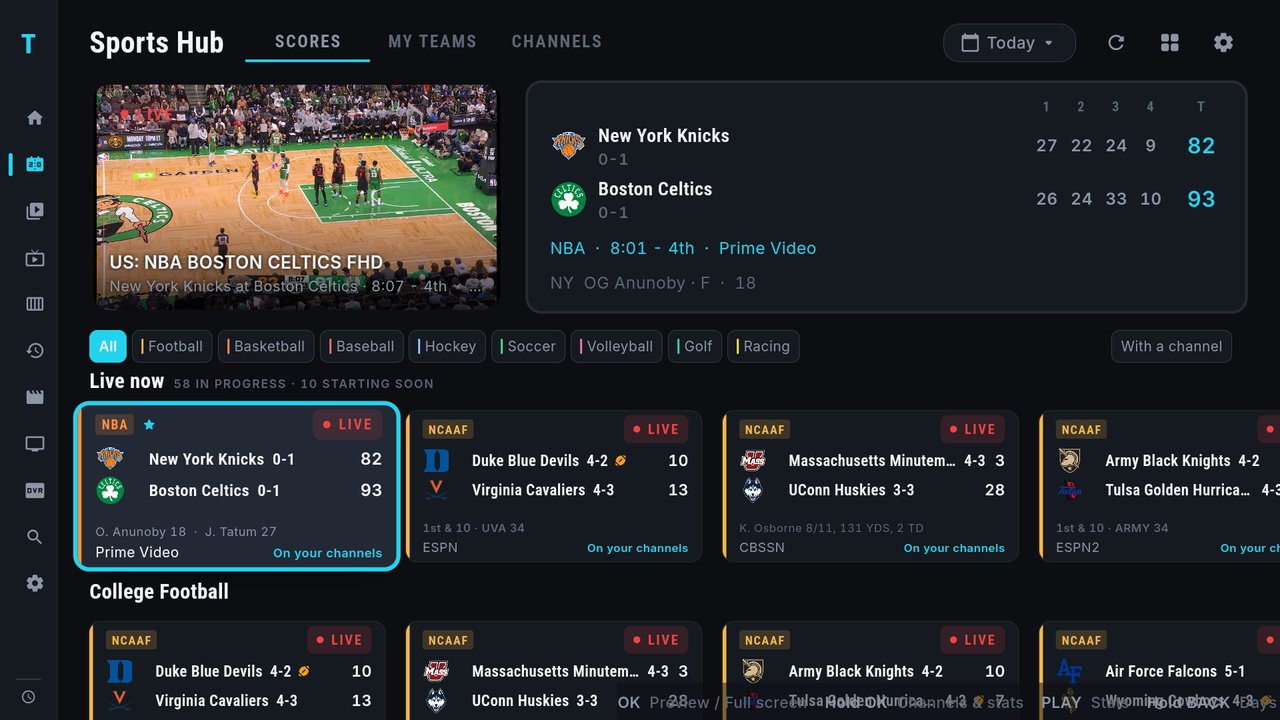
- OK on a card plays the game in the preview at the top left, and you can keep browsing while it plays.
- OK again on the same card, or OK on the preview itself, plays it full screen.
- BACK from full screen returns to the Sports Hub.
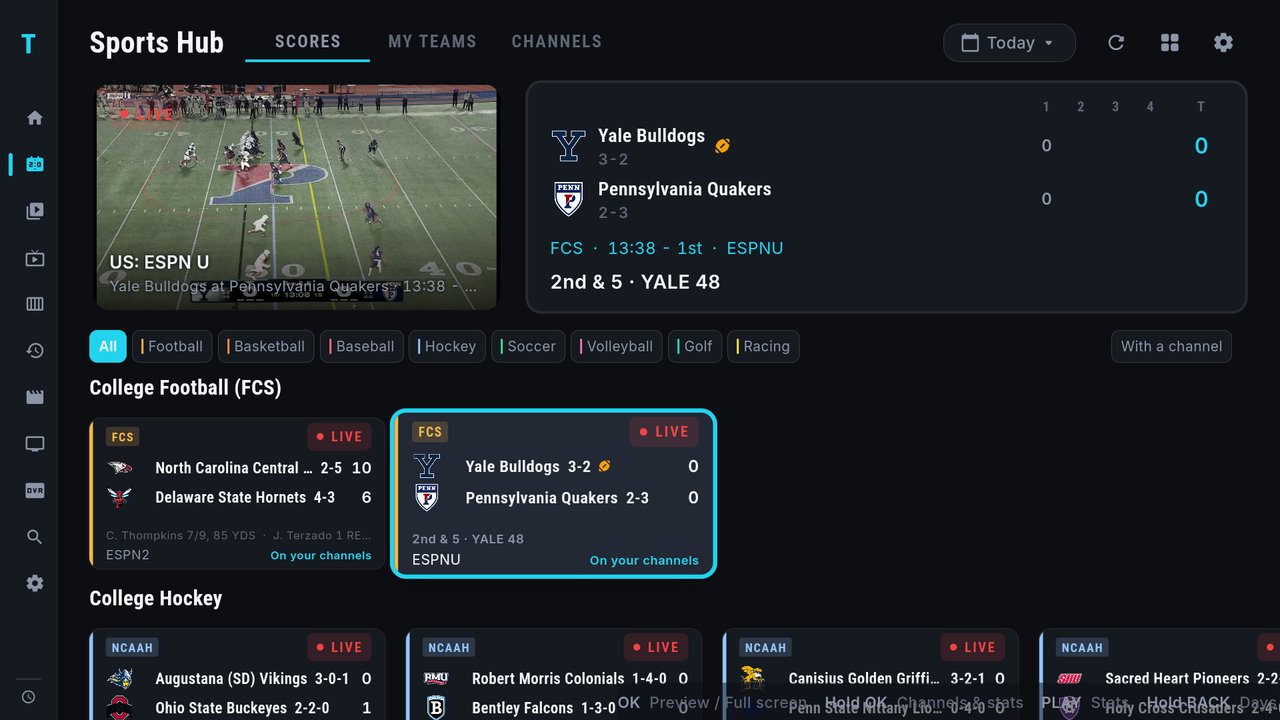
The info panel
The panel at the top right follows the card you're on:
- Before the game: both teams with their records, then STARTS (the time), ON (the network) and YOUR CHANNEL (the channel TIVRA found on your providers, and how many more there are).
- Once it starts: the score by period, the clock, the network and a standout player. On live football it also shows the down and distance (see Live football).
You can also move up onto the panel and press OK to open the game's stats. New in 3.3.7
5. The game menu (Hold OK)
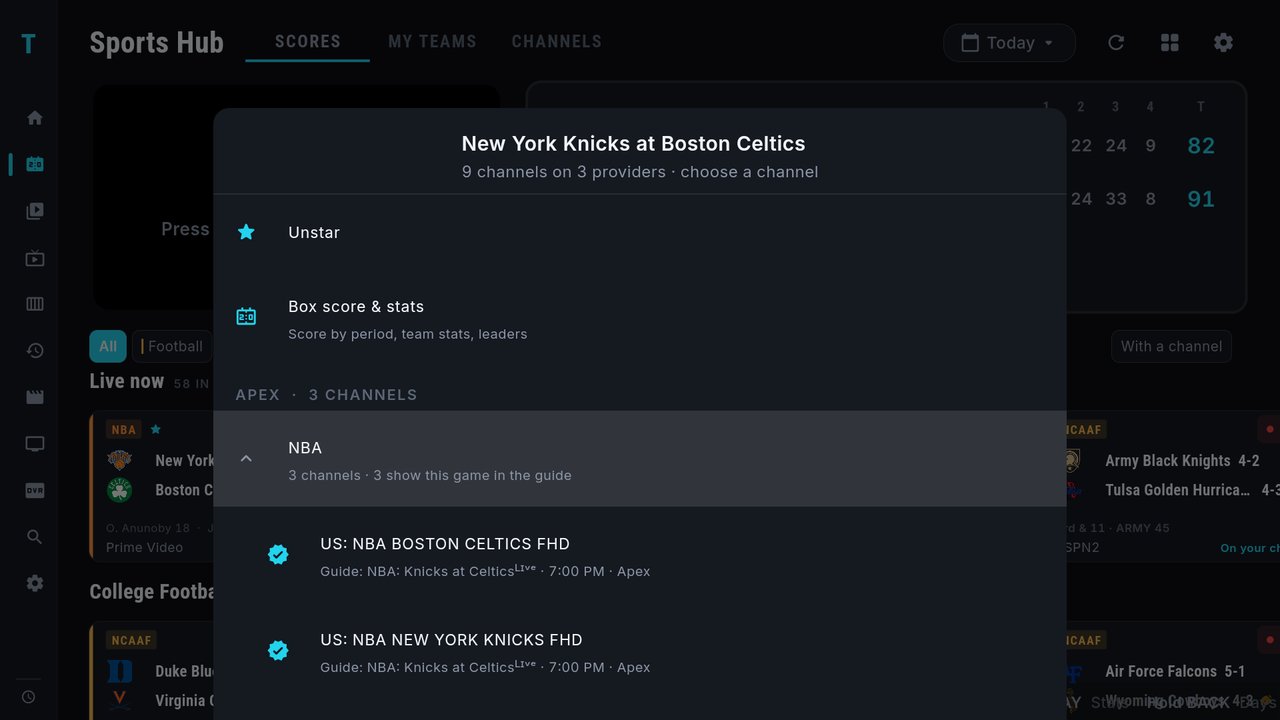
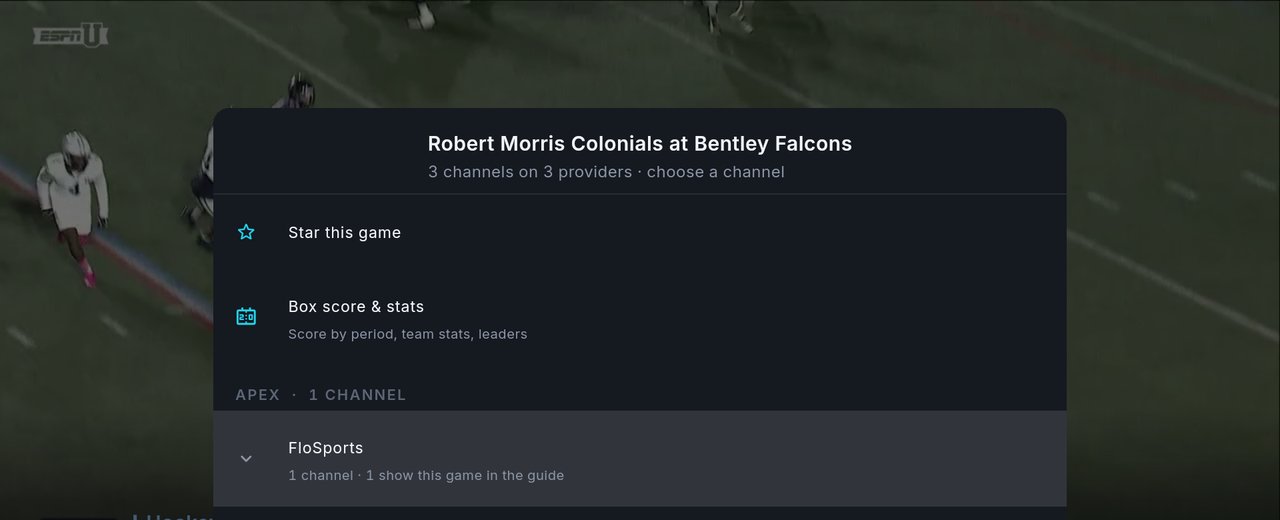
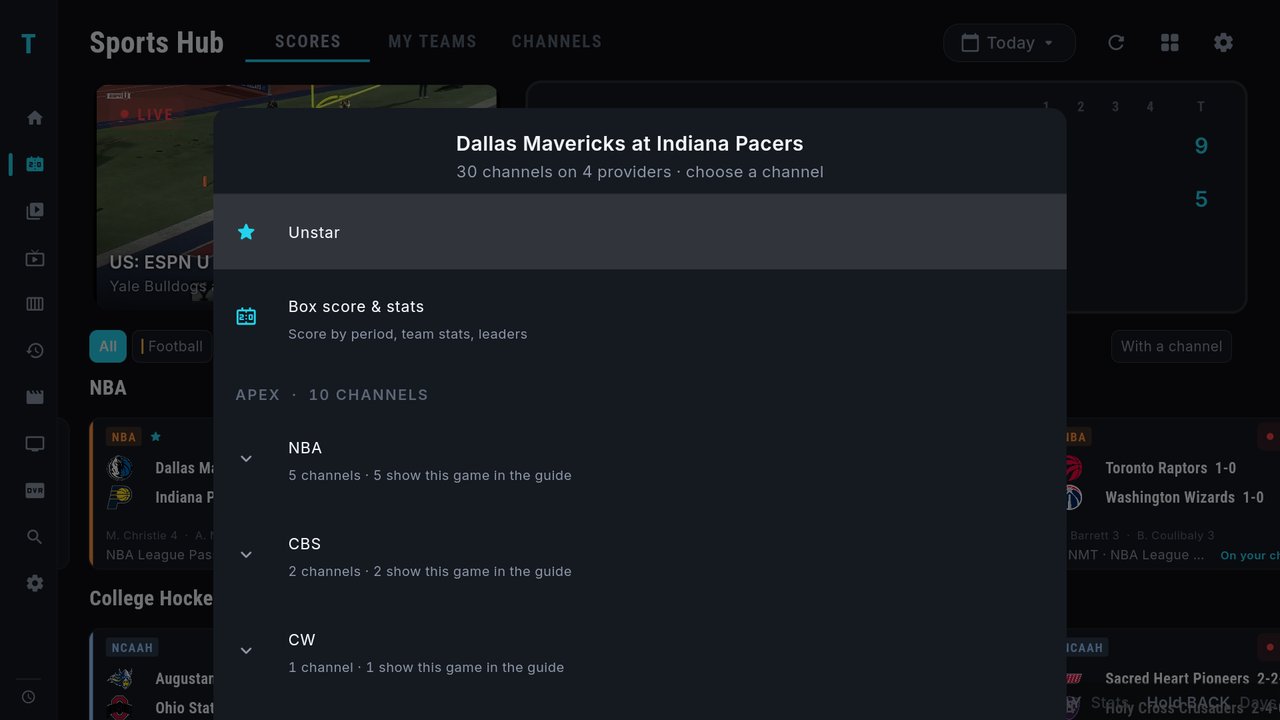
Hold OK on any game card for its menu. At the top it says how many channels carry the game and on how many providers. Then:
- Star this game (or Unstar) — see Starred games.
- Box score & stats — the stats sheet (see below).
- The channels, grouped by provider, then by broadcaster, for example NBA · 3 channels · 3 show this game in the guide. Press OK on a group to open it. Channels with a check mark have a guide entry for this game, shown under the channel name.
Press OK on a channel to watch it. It starts in the preview at the top left; OK on the card or the preview then takes it full screen. Which channels appear, and how many, depends on your providers.
Two settings change the order of the channels (both in Settings › Sports): Languages for games lists channels in your languages first (nothing is hidden), and Prefer highest quality lists 4K and FHD copies first among equally good matches. New in 3.3.7
6. Box scores and stats (PLAY)
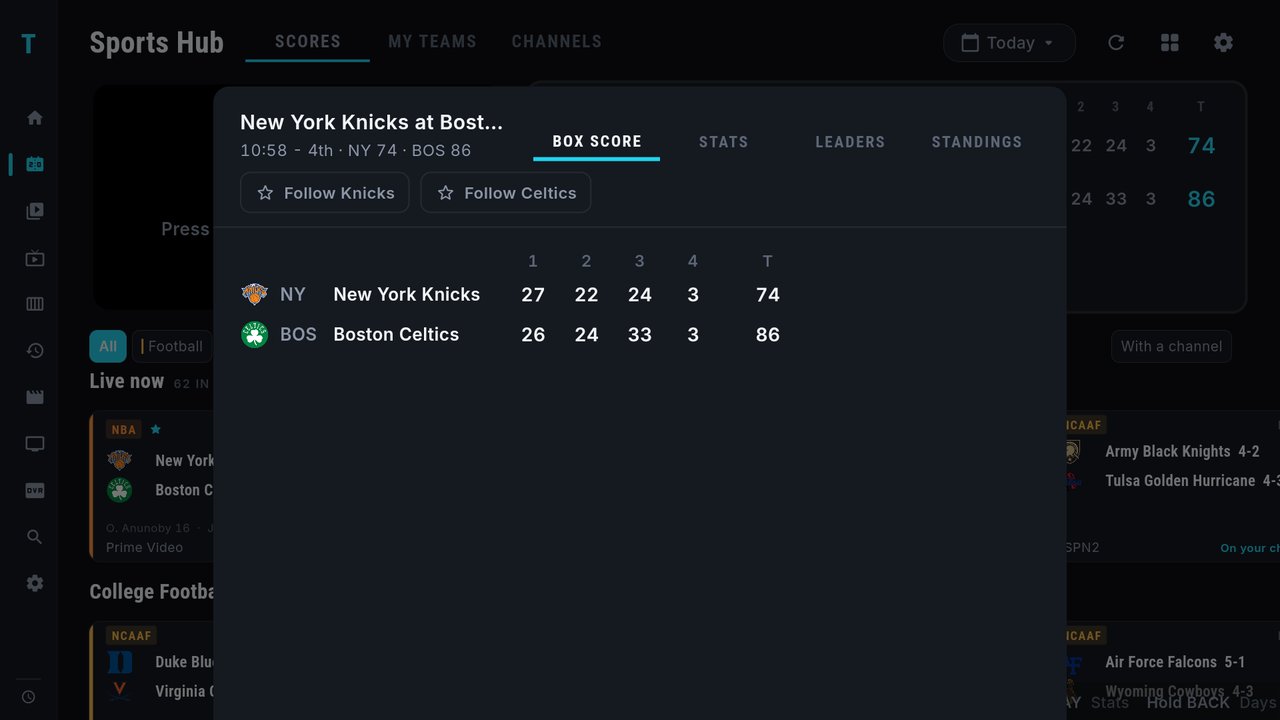
Press PLAY on a game card, or pick Box score & stats in its menu, to open the stats sheet. It has four tabs, BOX SCORE, STATS, LEADERS and STANDINGS, plus a Follow button for each team. Move between tabs with LEFT / RIGHT; BACK closes the sheet.
7. Hide scores (no spoilers)
Watching a game later? Turn on Settings › Sports › Hide scores. Cards then read HIDDEN instead of LIVE, the scores show as dashes, the standout-player and football lines disappear, and the info panel says Score hidden. Team names, records, networks and channel hints stay. Press OK on a game to reveal that one game's score.
8. MY TEAMS
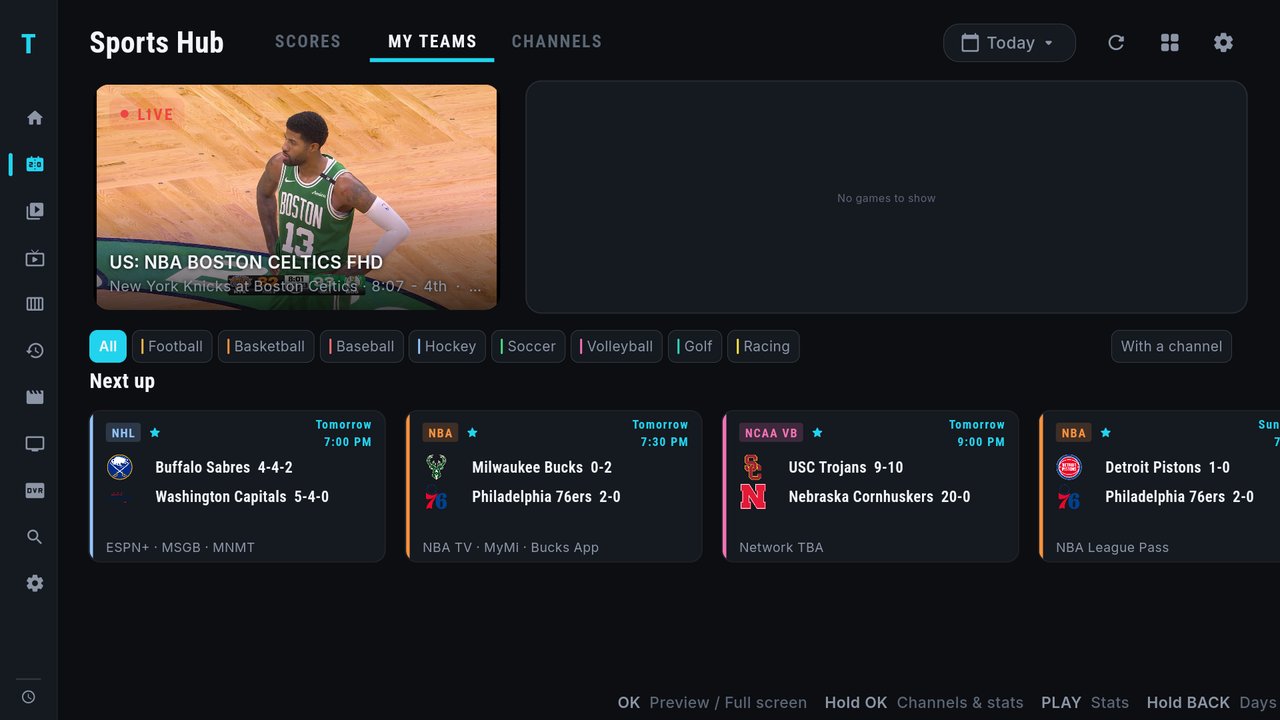
The MY TEAMS tab shows the games of the teams you follow. The Next up row shows their coming games with the day and time, such as Tomorrow 7:00 PM.
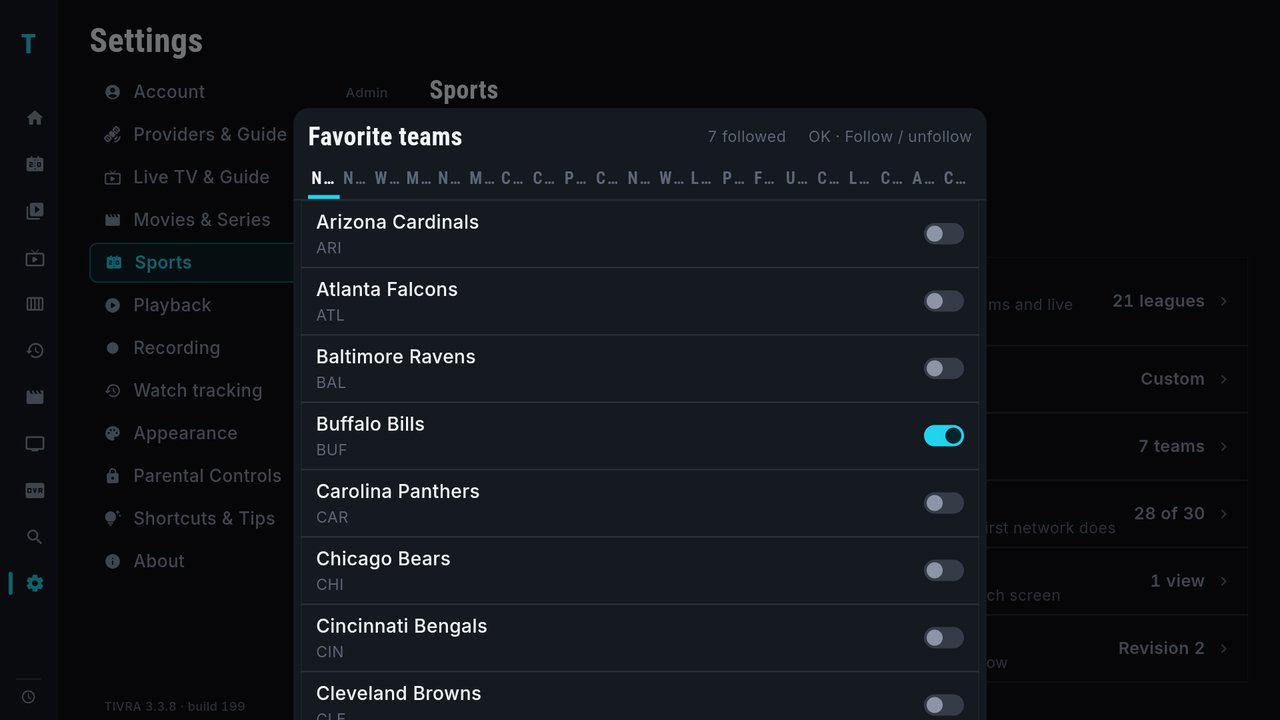
To follow or unfollow a team: go to Settings › Sports › Favorite teams. There's a tab for each league along the top; move to a team and press OK to turn it on or off. A game's stats sheet also has a Follow button for each team. Followed teams get a star on their cards.
9. The CHANNELS tab
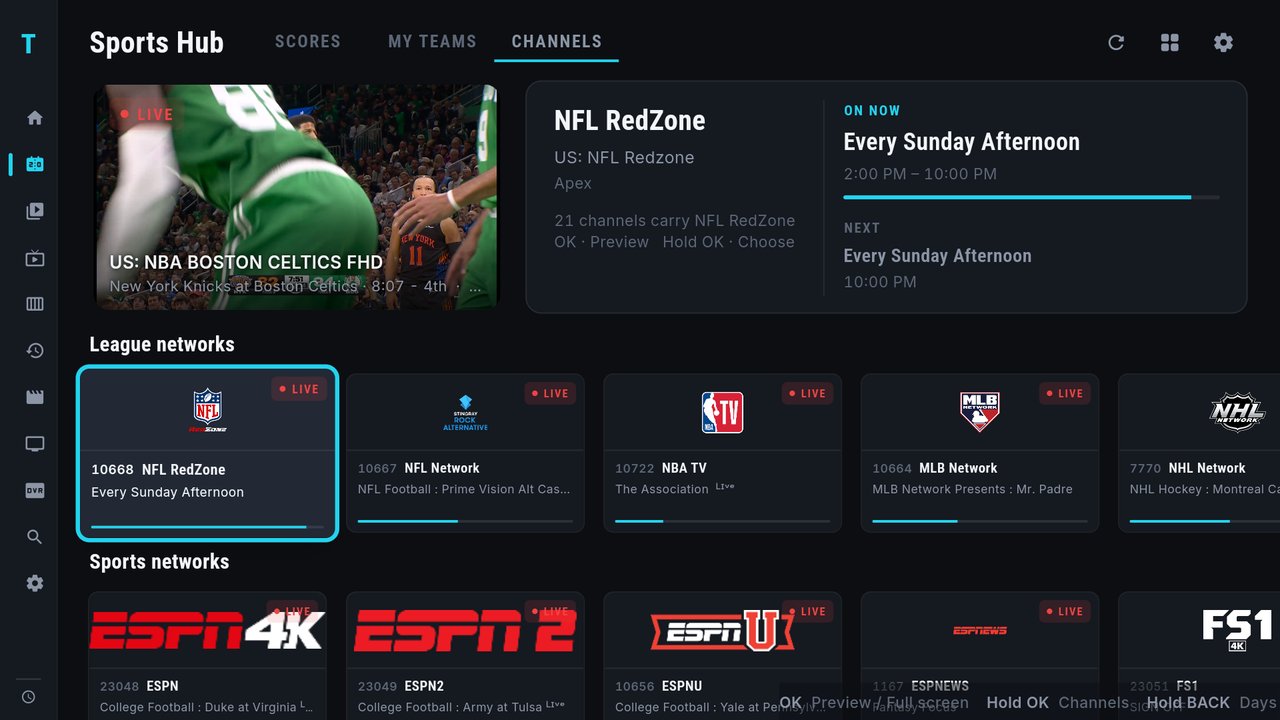
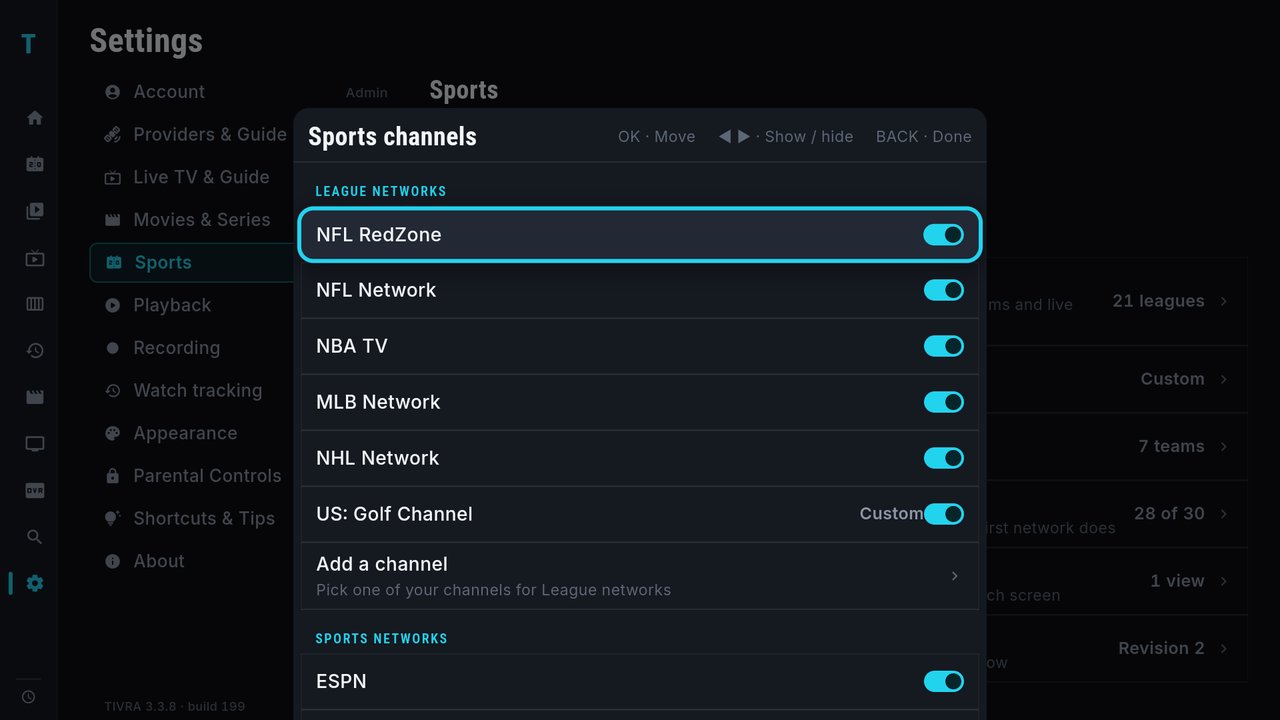
The CHANNELS tab lists the sports networks found on your providers, in rows such as League networks (NFL RedZone, NFL Network, NBA TV, MLB Network, NHL Network) and Sports networks (ESPN, ESPN2, ESPNU, FS1 and more). Each card shows the channel number, its name and what's on now. The panel at the top shows On now and Next, and how many of your channels carry that network.
- OK on a network previews it.
- Hold OK lists every copy of that network across your providers, so you can choose one.
"Your channels" here means the channels in your own providers' lists. A network only appears if one of your providers carries it.
To choose which networks show: go to Settings › Sports › Channels. Use LEFT / RIGHT to show or hide a network, OK to move it, and BACK when you're done. Add a channel at the end of each group lets you pick one of your own channels for that row.
10. Multi-View from the hub
The four-squares button at the top right opens a menu with your saved views first, then Games in progress (up to four live games side by side) and Manage views. Saved views are built in Settings › Sports › Sports Multi-View. For the Multi-View controls themselves, see Multi-View; for building saved views, see the Sports Hub guide.
11. Sports settings
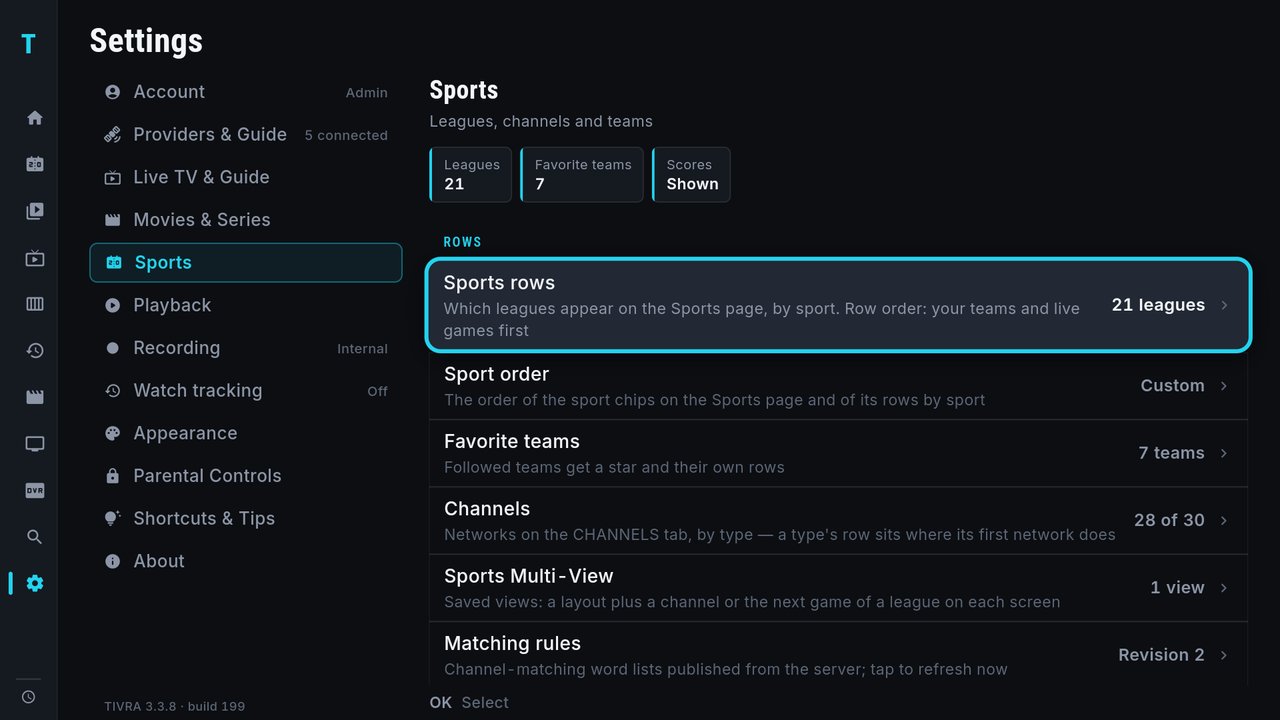
The gear on the Sports Hub opens Settings › Sports:
- Sports rows — which leagues appear on the page, grouped by sport.
- Sport order — the order of the sport chips and of the rows.
- Favorite teams — the teams you follow.
- Channels — the networks on the CHANNELS tab.
- Sports Multi-View — your saved views.
- Matching rules — the word lists TIVRA uses to spot games in channel names; press OK to refresh them now. New in 3.3.6
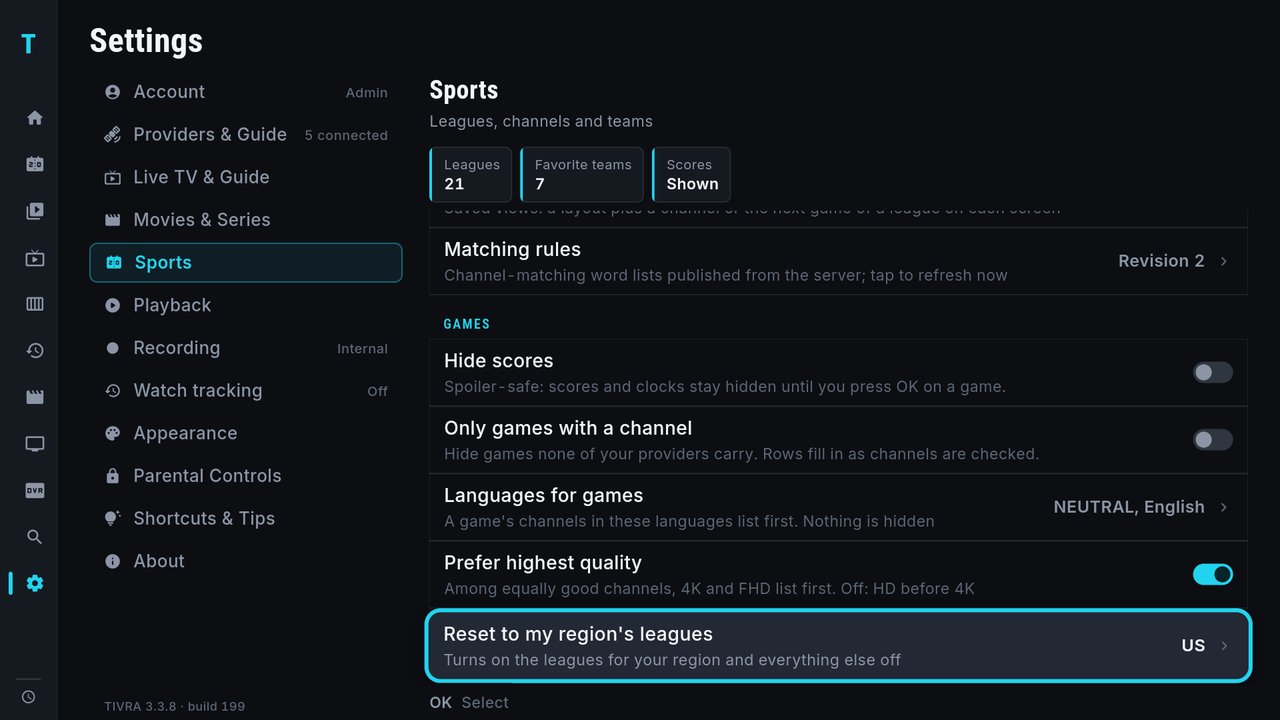
- Hide scores — no spoilers (see above).
- Only games with a channel — hide games none of your providers carry.
- Languages for games and Prefer highest quality — the order of a game's channels. New in 3.3.7
- Reset to my region's leagues — turns on your region's leagues and everything else off.
12. The scores overlay in the player New in 3.3.8
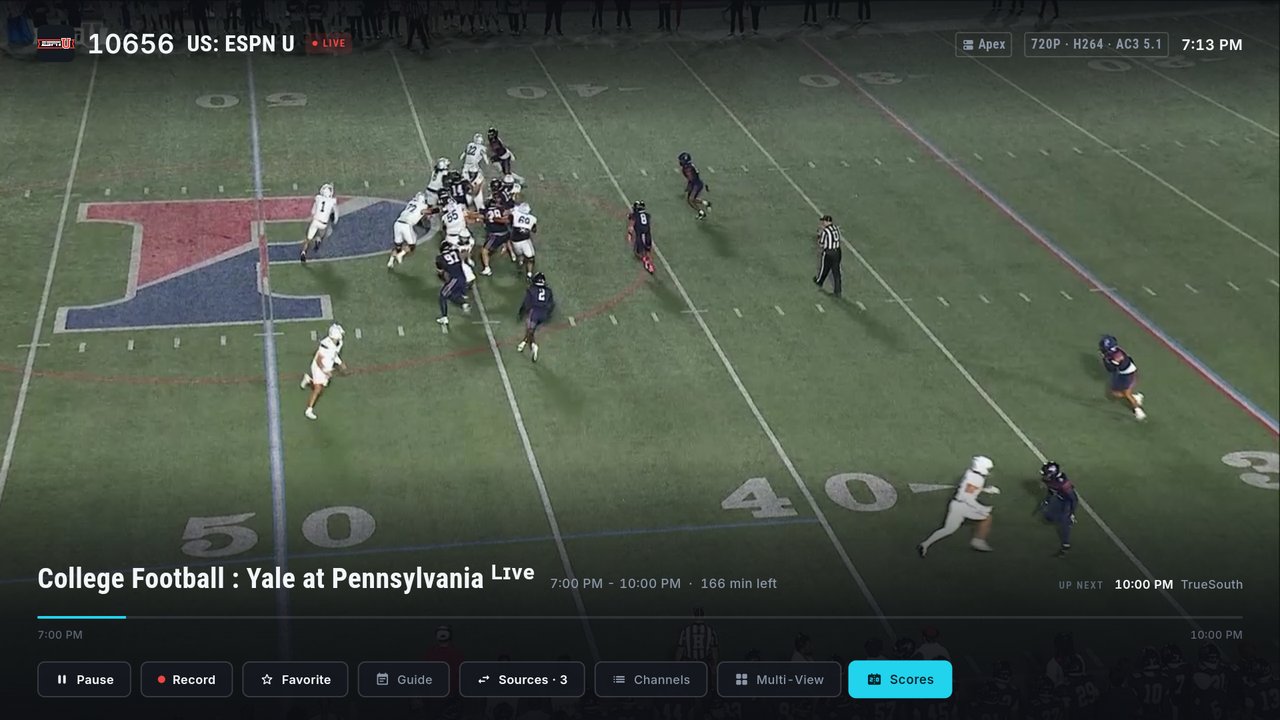
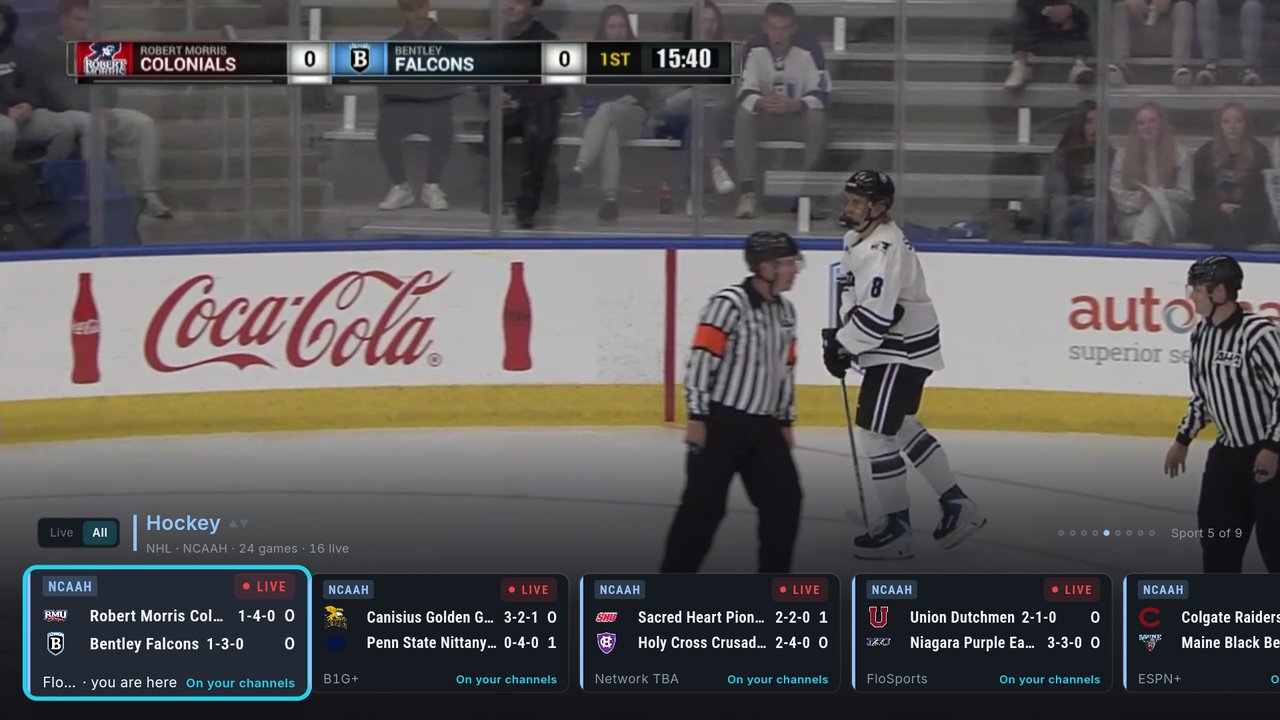
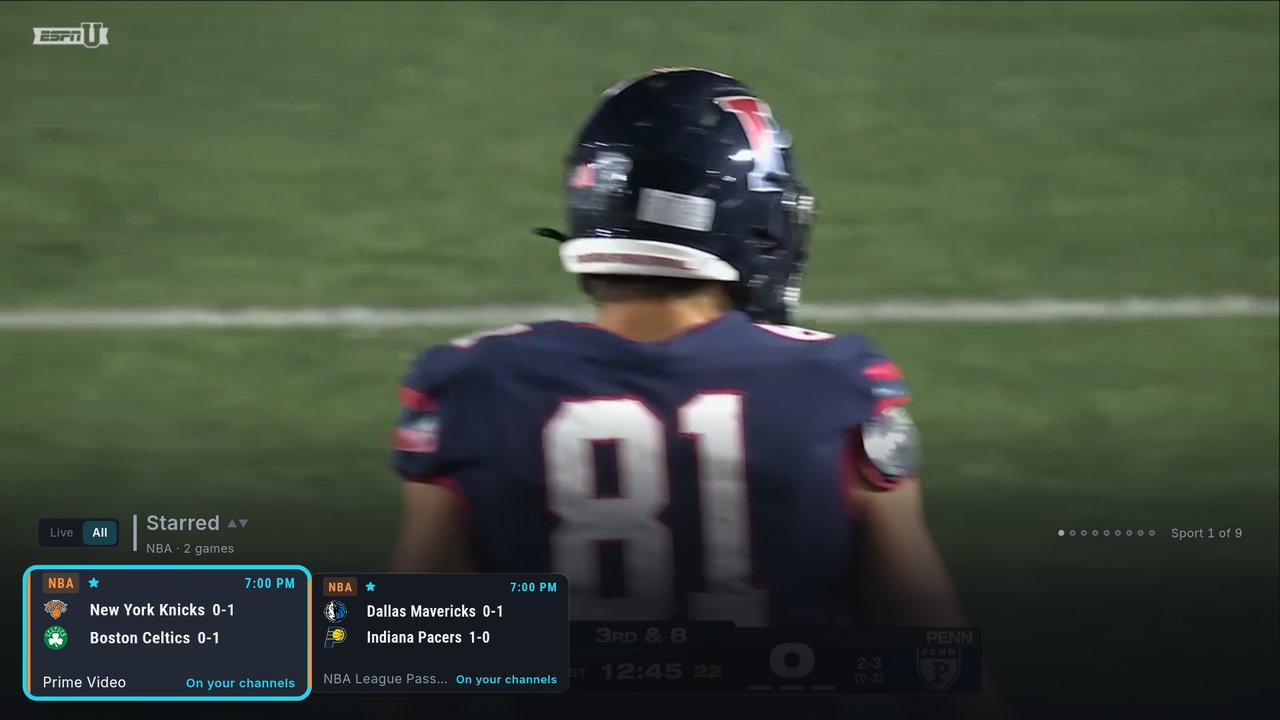
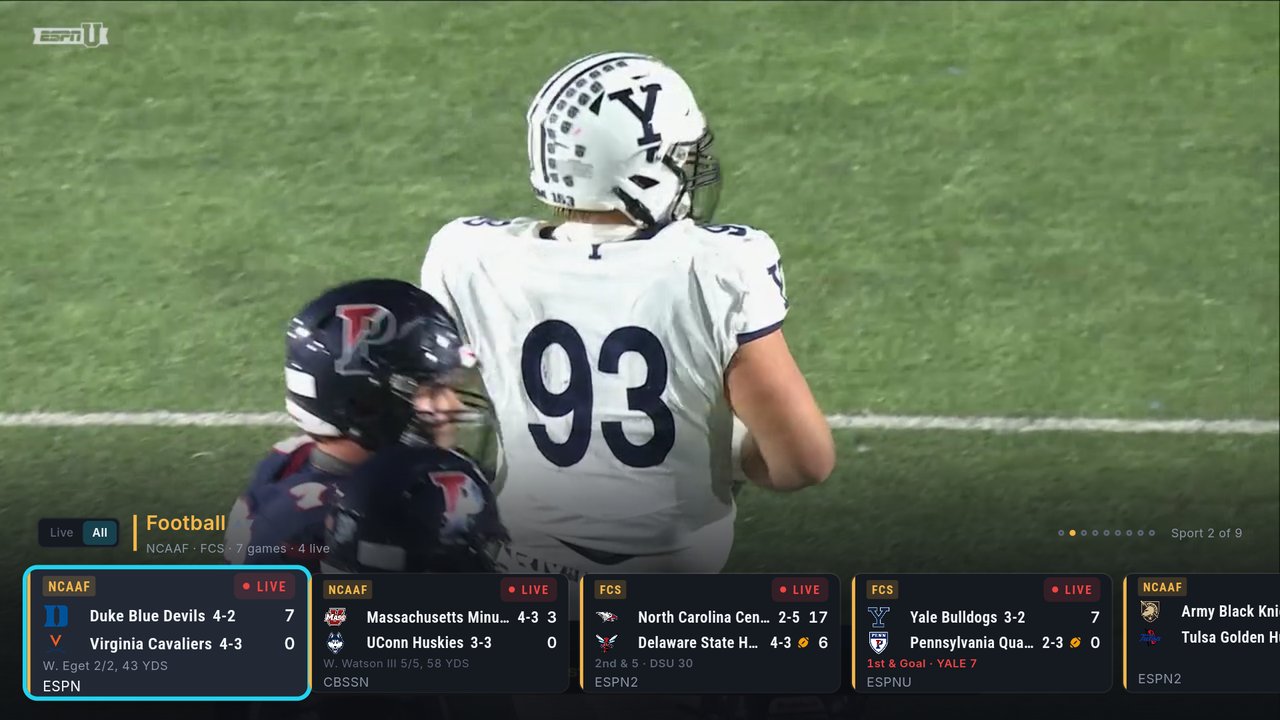
While a channel plays full screen, you can bring up today's scores along the bottom of the picture without leaving the game. The cards are the same ones you see in the Sports Hub, one sport at a time.
Open it
The easiest way: hold DOWN. While a game plays full screen with the controls hidden, press and hold the DOWN arrow on your remote. The scores overlay opens straight away.
You can also get there from the player's buttons: press OK to show the controls, move RIGHT to Scores at the end of the row, and press OK.
What's on screen
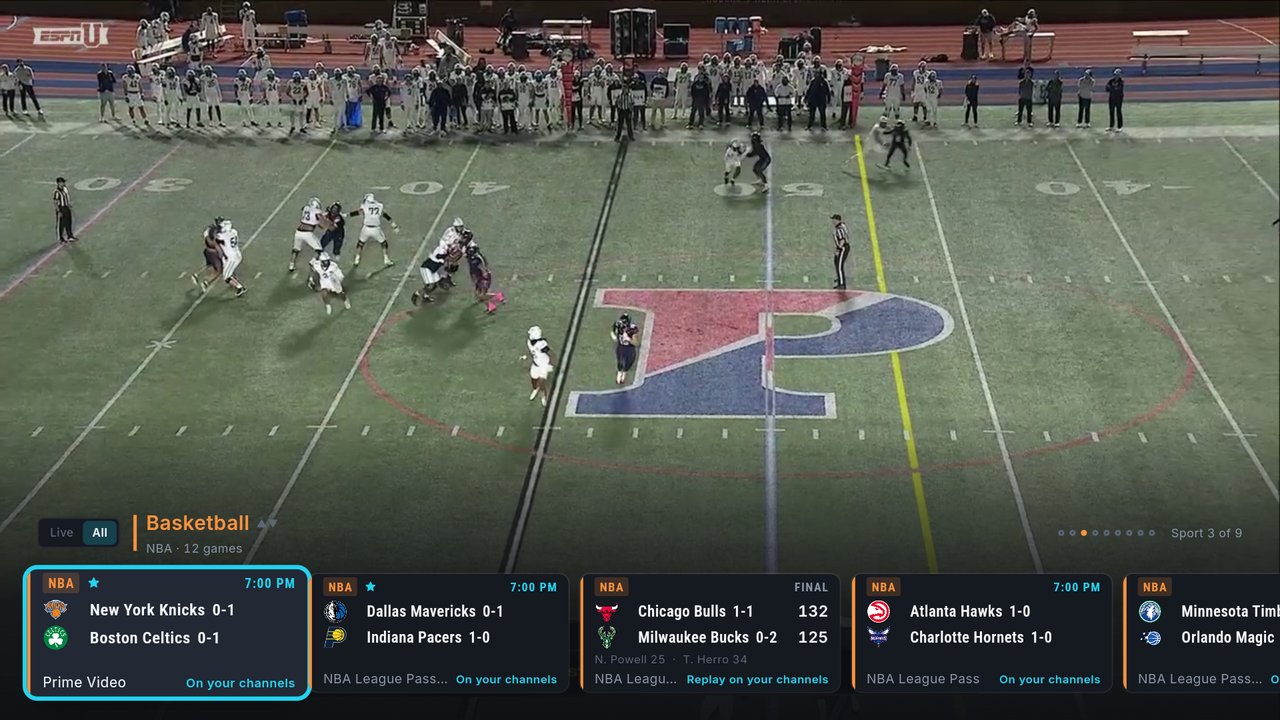
- The sport in its own colour, with a line under it naming the leagues playing today, how many games there are, and how many are live (for example NHL · NCAAH · 24 games · 16 live).
- Sport 5 of 9 on the right, with a dot for each sport, so you know where you are.
- Live / All on the left (see below).
- A row of game cards. Your starred games come first, and games in progress lead the rest.
The cards
The cards are the same as on the Sports Hub (see Reading a game card), with one extra: the card for the game you're watching says you are here.
13. Moving around the overlay
- LEFT / RIGHT — move between the cards of a sport.
- UP / DOWN — flip to the previous or next sport. The overlay shows one sport at a time instead of one long row, and the new sport opens on its first card. On the last sport, DOWN does nothing.
- OK on a card — watch that game. The player switches to the game's channel behind the overlay, the overlay stays open, and the card now says you are here. Check another game or press BACK to watch.
- Hold OK on a card — the game's menu: Star this game, Box score & stats, and every channel on your providers that carries the game, grouped by provider. BACK closes the menu and takes you back to the card.
- BACK — close the overlay and keep watching. Press BACK again to leave the player.
Live only
Press LEFT on the first card to reach the Live / All switch, then press OK to change it. Live shows only games in progress and skips any sport with nothing on right now; All shows everything from today. Press DOWN to go back to the cards.
14. Star the games you care about New in 3.3.8
Star a game and it jumps to the front of its row in the Sports Hub, and onto its own Starred page at the start of the scores overlay. It's the quickest way to keep tabs on the three or four games you're following tonight.
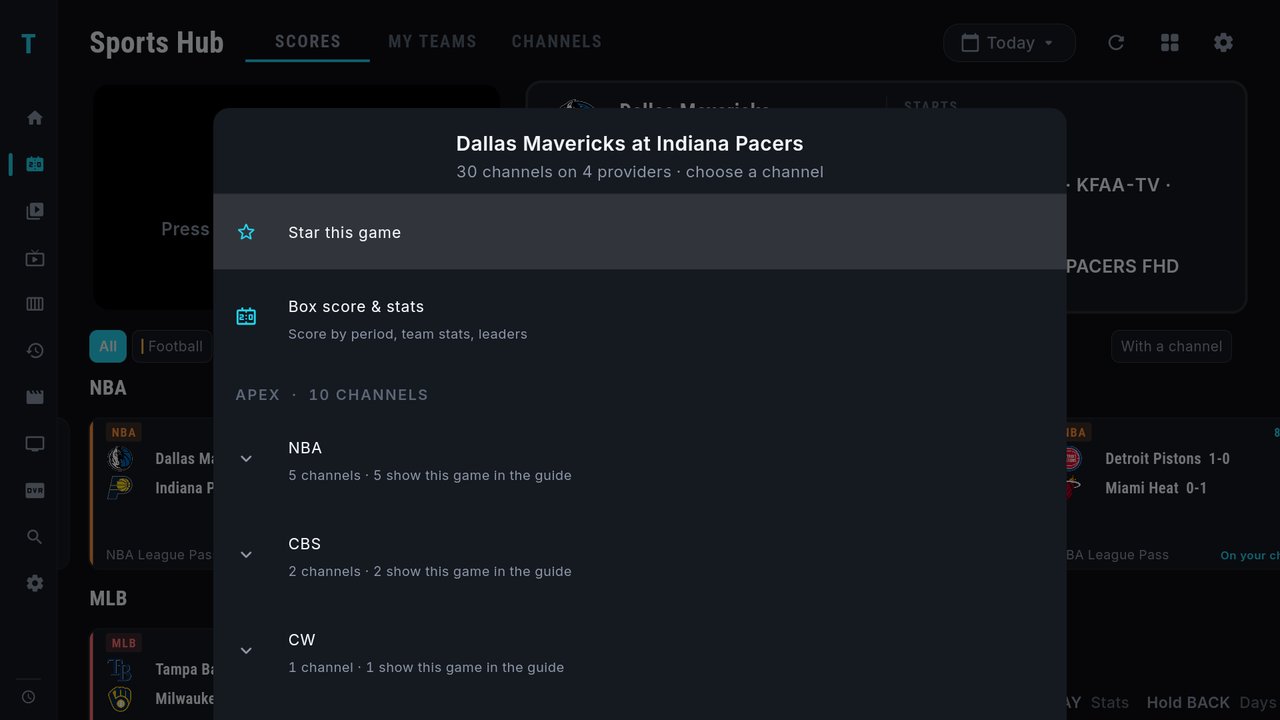
Star a game
- In the Sports Hub, move to the game's card.
- Hold OK to open the game's menu.
- Press UP to reach Star this game at the top and press OK.
The same menu opens when you Hold OK on a card in the scores overlay, so you can star games from the player too.
Where starred games show up
- In the Sports Hub, a small star appears next to the league on the card, and the game moves to the front of its row.
- In the scores overlay, a Starred page comes first, before every sport, with all your starred games from every league together. Starred games also lead their own sport's page.
Unstar a game
Hold OK on a starred game. The top row of the menu now reads Unstar. Press UP to reach it and press OK. The star goes away and the game drops back to its usual place in the row.
15. Live football: who has the ball New in 3.3.8
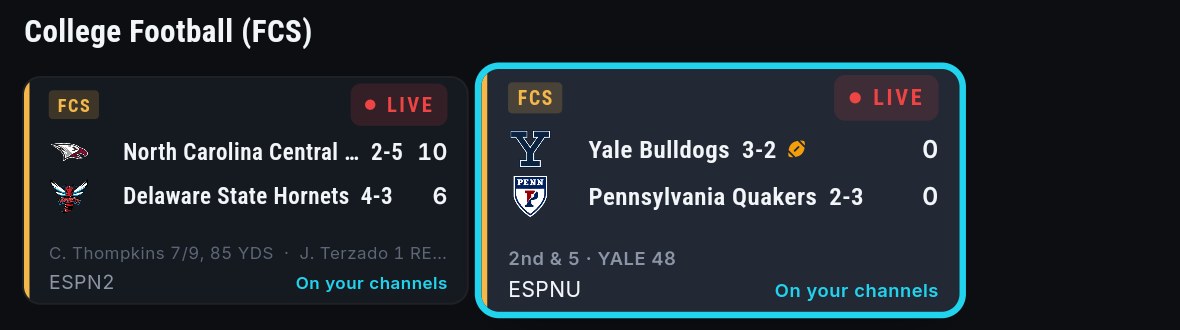
While a football game is live, its card shows the game situation:
- A small football next to the team that has the ball.
- Down & distance and the yard line under the score, such as 2nd & 5 · YALE 48 (second down, five yards to go, at Yale's own 48).
- In red when the offence is inside the 20, such as 1st & Goal · YALE 7.
You'll see this on the cards in the Sports Hub, in the scores panel at the top of the Sports Hub, and on the cards in the scores overlay. It updates as the game goes on.
More about the Sports Hub
The Sports Hub guide on our blog is the long read: every league TIVRA covers, how games are matched to your channels, building saved Multi-View views, and setting things up from the web dashboard.
Quick reference
On the Sports Hub
- OK on a card — preview it top left; OK again (or OK on the preview) — full screen.
- Hold OK on a card — the game menu: Star or Unstar, Box score & stats, channels.
- PLAY on a card — box score and stats.
- Hold BACK — jump to the day picker.
- OK on a sport chip — show one sport; OK on With a channel — only games your providers carry.
- BACK — open the menu on the left.
In the player
- Hold DOWN (controls hidden) — open the scores overlay. The easiest way in.
- OK, then RIGHT to Scores, then OK — open the scores overlay from the player's buttons.
- UP / DOWN (overlay) — flip to the previous or next sport.
- LEFT / RIGHT (overlay) — move between games.
- OK on a card (overlay) — watch that game; the overlay stays open.
- Hold OK on a card (overlay) — the game menu.
- LEFT on the first card, then OK (overlay) — switch between Live and All.
- BACK (overlay) — close the overlay; BACK again leaves the player.
Don't have TIVRA yet?
Download the Android TV APK — free 7-day trial, no card required.
Download TIVRA