Record Two IPTV Channels at Once on Android TV
Two things you want are on at the same time, on different channels. Until recently TIVRA would record one and quietly skip the other. Since TIVRA 3.4.1, a scheduled recording no longer gets skipped because another one is running: two recordings run side by side. This guide covers scheduling both from the guide, where the files go, and the one thing outside TIVRA's control you need to check first.
Only record what your provider subscription entitles you to, for personal use. TIVRA is a player and doesn't supply channels.
Before you start: connections
Every recording is a live stream from your provider, exactly like watching a channel. Two recordings are two streams, and watching something else while they run is a third. Most providers cap simultaneous streams per login, often at one or two. So:
- With a two-connection plan you can record two channels from that provider at once, but not watch a third from it at the same time.
- With two providers, each recording can come from a different one and use that provider's own allowance.
- If you aren't sure how many streams your plan allows, ask your provider. The limit is theirs, not TIVRA's.
Where recordings go
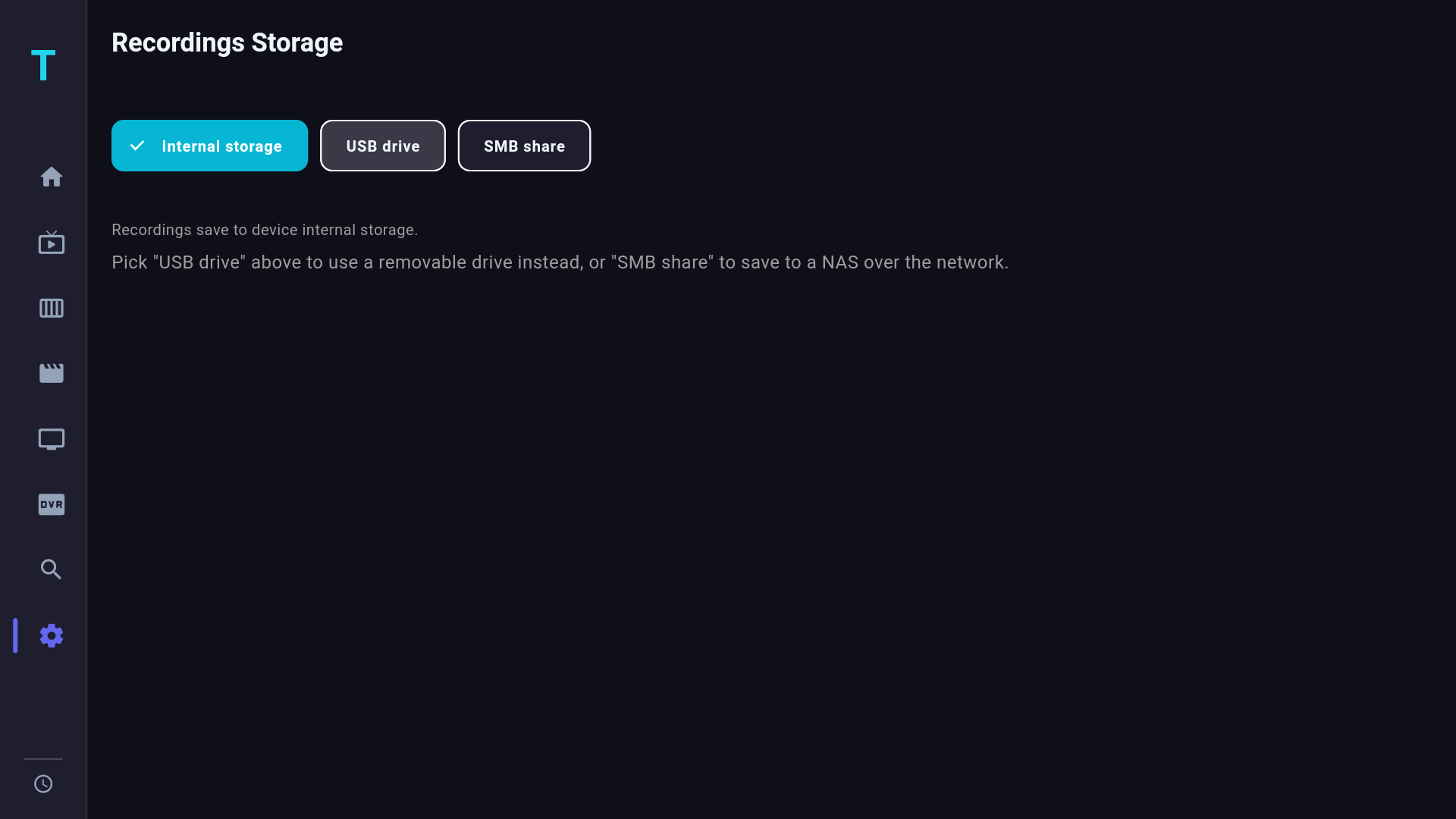
Open Settings › Storage and pick a target for recordings:
- Internal: fastest to set up, limited by your box's free space.
- USB drive: plug it in, choose Use as portable storage (never internal), pick a folder and allow access. TIVRA write-tests the drive, and Verify storage speed checks it keeps up. Cheap flash sticks often have low sustained write speeds that struggle with more than one recording at a time; an external SSD handles two easily. Format large drives as exFAT, since FAT32 caps a file at 4 GB. See USB drive storage.
- NAS / SMB share: server, share, optional folder and login, then Test connection. Two recordings over Wi-Fi can saturate a weak signal; wired Ethernet is the steady option. See NAS setup.
The live TV pause buffer is a separate setting, so you can keep it on internal storage while recordings go to a USB drive or a NAS.
Schedule two recordings
- Open the Guide and move to the first programme. Future programmes are to the right.
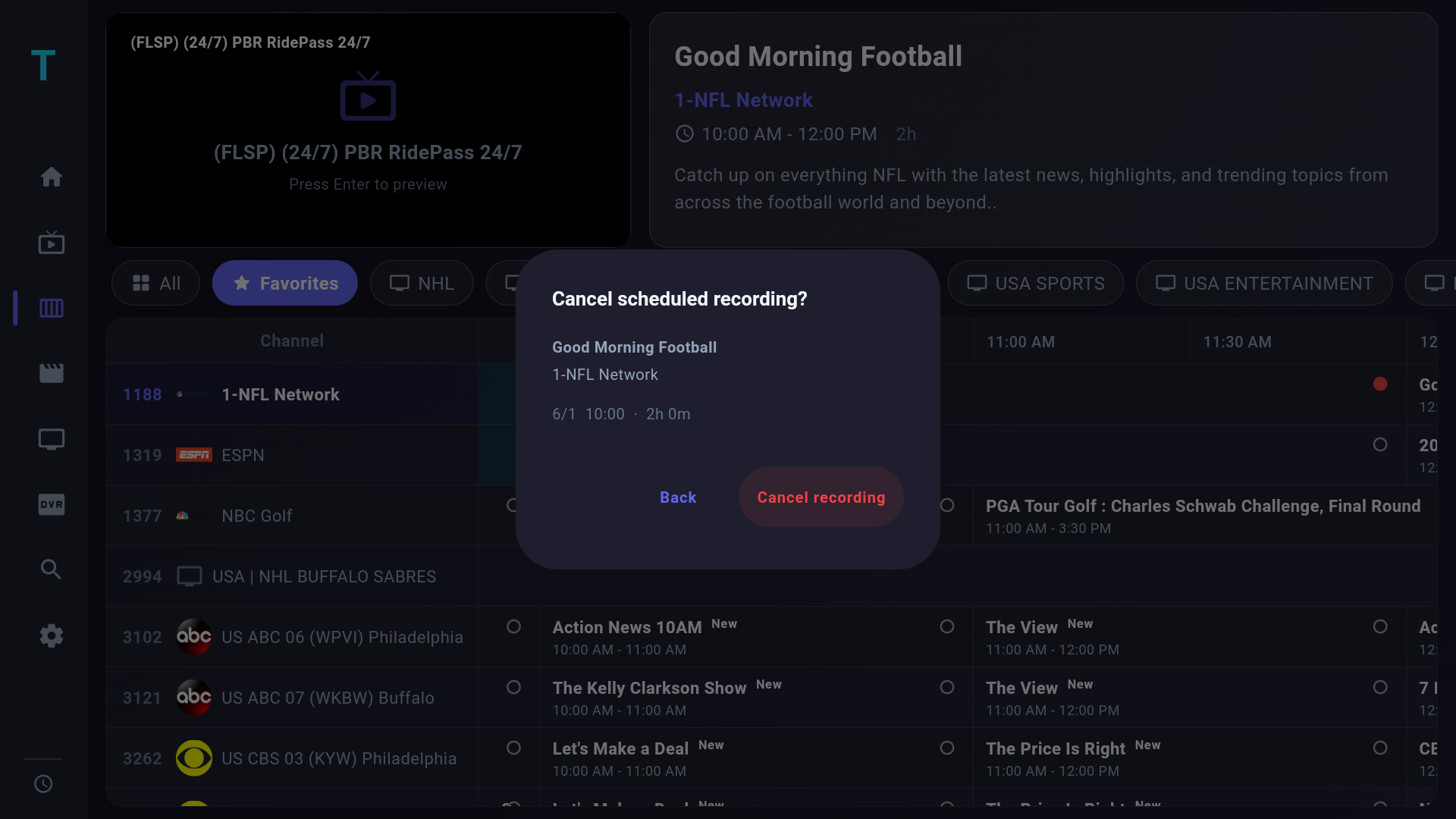
- Press OK on the future programme to open the Schedule Recording dialog, and confirm. A red dot marks it in the guide. Turn on Recurring to catch every airing of a series.
- Repeat for the second programme on the other channel, even if the times overlap.
- Check the Recordings page. Both appear under Scheduled.
Recording something that's already on? Hold OK on a channel in Live TV for its menu with Record, or use Record Now in the Guide's channel menu (LEFT from the programme on now lands on the channel; hold OK there). TIVRA asks how long to record.
Scheduled recordings start and stop on time even with the app closed or the TV in standby, and pending schedules survive a reboot. Since 3.4, a recording that hits a stream drop reconnects and carries on in the same file instead of stopping early.
Watching and managing recordings
The Recordings page has three tabs: Scheduled, Recording (running now) and Recorded. Since 3.4.1 it refreshes by itself and keeps your place after Stop or Delete. Short OK on a finished recording plays it; hold OK opens Play, Stop and Delete. Recordings resume like any movie. For the full storage walkthrough, see recording live IPTV to USB or NAS, and scheduled recordings for the details.
Frequently asked questions
Can TIVRA record two channels at the same time?
Yes, from version 3.4.1. A scheduled recording is no longer skipped because another one is running. Update from Settings, About, Check for updates.
Does a recording use one of my provider's connections?
Yes. Each recording is a live stream, so two recordings use two connections. Check how many simultaneous streams your plan allows, or record from two different providers.
Will scheduled recordings run if the app is closed?
Yes. Scheduled recordings start and stop on time with TIVRA closed or the TV in standby, and pending schedules survive a reboot.
Which USB drive should I use for two recordings at once?
An external SSD formatted as exFAT and used as portable storage. Cheap flash sticks often can't sustain the write speed of more than one recording.
Record from your own provider
7-day free trial, no card required. Point recordings at a USB drive or your NAS in a minute.
Start Free Trial Get it on Google Play